
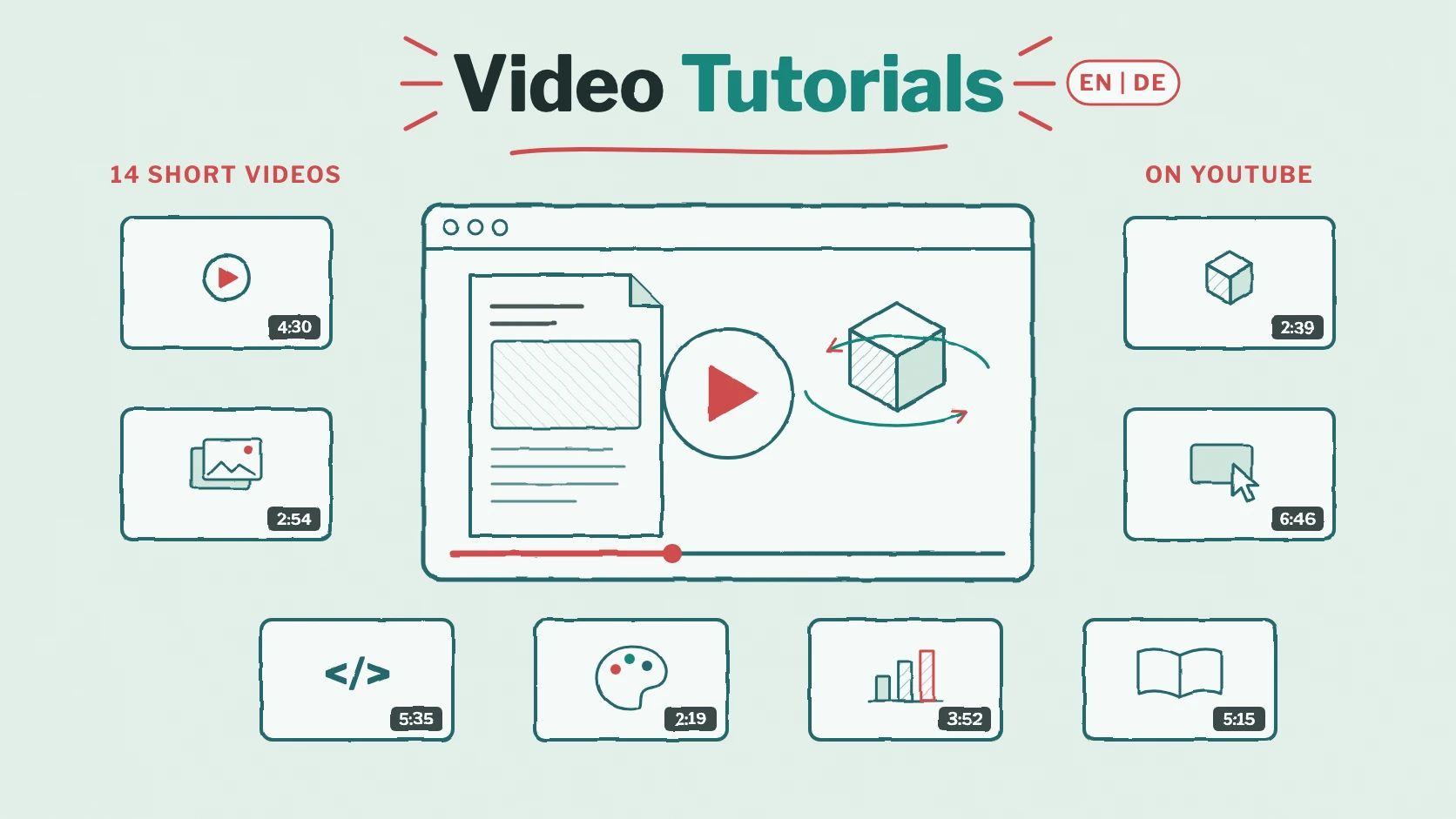
Some things are easier to show than to explain. That’s why we recorded a video series: 14 short tutorials that walk you through Viewnamic step by step – from the first upload to a finished interactive document. Every episode is available in English and German on our YouTube channel, and most of them take between two and seven minutes.
Here is an overview of all episodes: what you learn in each one and where to watch it.
Getting started
- Create Interactive PDFs with Video & 3D (7:09) – the complete tour: a product brochure gets videos, a 3D model, a click dummy and an image gallery, is published and opened in the viewer, and the viewer and the public page get their own design. The best place to start.
- Publish a PDF Online and Share a Link (2:12) – upload a magazine, show it with page flip, add it to your public page and share its link. No interactive content needed.
Interactive content on the page
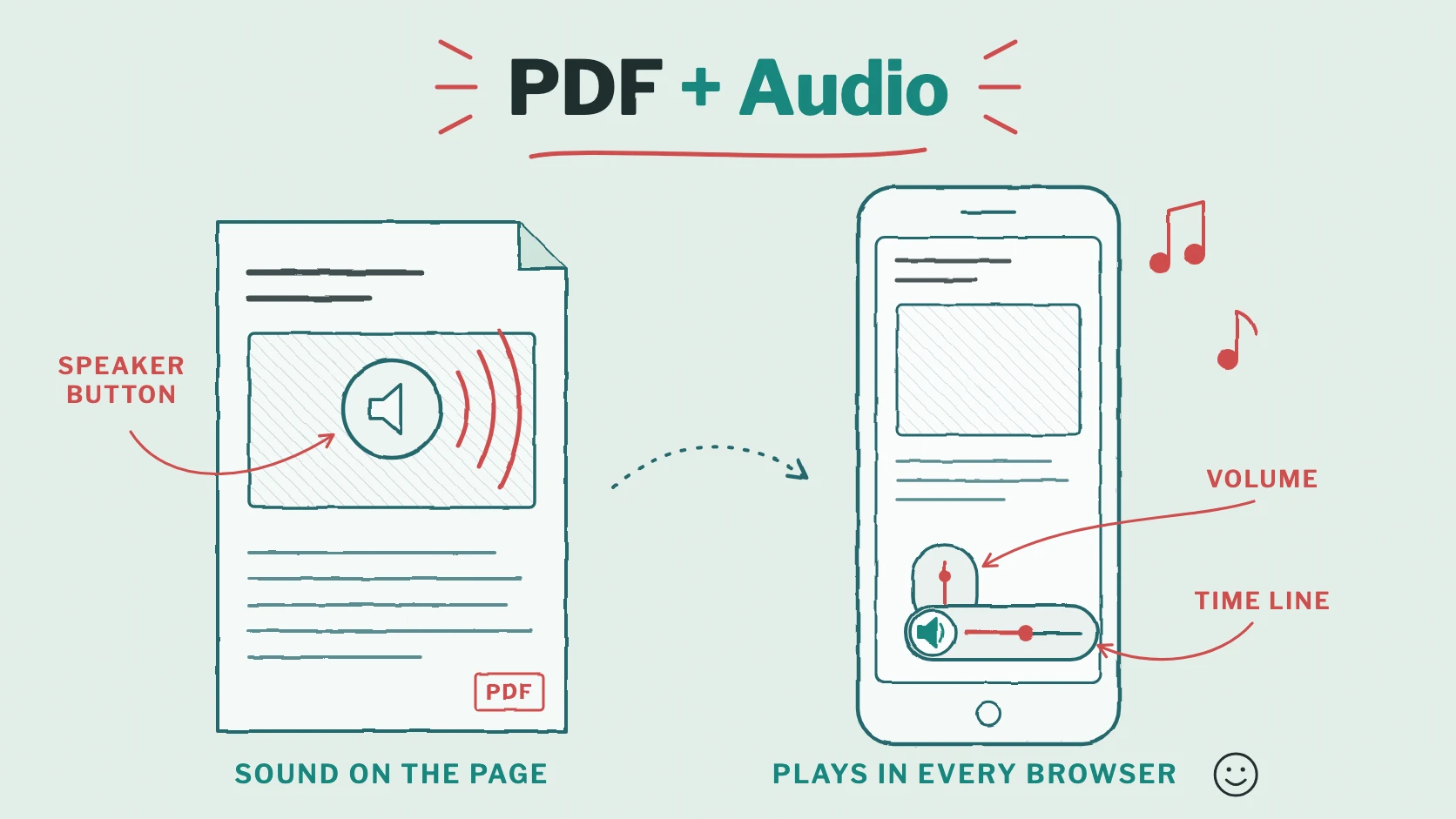
- Add Video to a PDF: Sound and Autoplay (4:30) – a product video on a brochure page with all its settings: sound, autoplay, loop and picture-in-picture, which keeps the video playing in a floating window while readers turn the pages.
- Add an Interactive 3D Model to a PDF (2:39) – place a 3D model on a page, set its start view and let readers turn and zoom it.
- Add an Image Gallery to a PDF (2:54) – show several photos on one spot of the page as a slideshow and set their order.
- Create a Clickable Prototype and Add It to a PDF (6:46) – build a click dummy from a few screenshots and place it in your PDF, where readers click through it like a real app or website.
Sharing, design and statistics
- Embed a PDF on Your Website or WordPress (5:35) – choose the options of the embed code, check the live preview at phone, tablet and desktop width and add the PDF to your website.
- PDF Viewer Branding: Add Your Logo and Colours (2:19) – give the viewer and your public page your logo and colours.
- PDF Analytics: Views, Reading Time and Downloads (3:52) – read the statistics of a publication: visits, reading time per page, downloads and how often readers use videos and other content.
- Present PDF Slides with Videos (6:26) – a pitch deck with videos, a 3D model and a click dummy, presented in the viewer’s Presentation view.
Examples from practice
Four episodes follow a complete project from start to finish – ideal if you want to see what Viewnamic does for your kind of document:
- Create and Publish an Online Magazine from a PDF (5:15) – a city magazine goes online with page flip, gets three short videos and appears on the publisher’s public page. More on our page for magazines and publications.
- Create an Interactive Product Catalog from a PDF (5:24) – a product catalogue with videos, a 3D model and a click dummy for the sales team, plus the statistics that show how often each element was used. More on our page for catalogues and brochures.
- Create an Interactive PDF Resume with Video (3:27) – an application with a personal video on the photo, shared as “Link only”, so it appears on no public page. Tips for the content are in our CV guide.
- Create an Interactive PDF Portfolio with Videos (3:30) – a design portfolio whose project photos move: nine short videos placed right in the pictures. See also our portfolio checklist.
Watch in the help center or on YouTube
The first ten episodes are also part of our help center, right next to the written instructions: watch an episode, then follow the steps at your own pace. In the help center, the YouTube player loads only after you click on a video – until then, your browser doesn’t connect to YouTube.
On YouTube, you find all episodes in both languages. Subscribe to the channel if you want to hear about new videos.
Who the videos are for
- New customers who want to see how Viewnamic works before they upload their first PDF.
- Teams who show colleagues how to edit a publication – a link to the right episode replaces a long explanation.
- Agencies and freelancers who explain to their clients what an interactive PDF can do.
- Everyone who prefers watching to reading – every episode shows the steps on screen, from the first click to the published result.
Try it yourself
The quickest way to get to know Viewnamic is still to use it: upload a PDF without an account and follow the first episode, or start with the Free plan. Is a topic missing from the series? Let us know which video would help you most.
Publish your PDFs with Viewnamic
Host, share and enhance your documents – with the Free plan, online for 30 days.