Skip to content
Viewnamic – home

Use case · Presentations

Add video and interactive content to your PDF presentation

Keep the reliability of a PDF and the impact of video. Add videos, 3D models and interactive elements to your slides and present them in fullscreen from any browser.

  • 30 days free
  • Your PDF stays unchanged
  • Hosted in Germany

Live example

See it in a real document

Our own pitch deck as an interactive PDF presentation – scroll through it or present it in fullscreen.

Preview of the live example: Viewnamic pitch deck
Open the live example (opens in a new tab)

Opens the document from viewnamic.com

Viewnamic pitch deck Presentation · Viewnamic Open in a new tab: Viewnamic pitch deck

Trusted by teams across industries

  • Deutsche Bank Immobilien
  • MBG Group
  • Ecclesia Group
  • Spar- und Bauverein
  • Landesregierung NRW
  • Paderborn University
  • PalPrint
  • Wegener
  • Kran Immo Real Estate
  • Insurlab Germany
  • Braynpower
  • Solarmarkise
  • Jana Uthe Interior Design
  • MiaArtVenture
  • garage33
  • Hosted in Germany
  • GDPR-compliant
  • Privacy-friendly statistics
  • Protected access
More about privacy & security

The problem

Static PDF presentations lose their impact

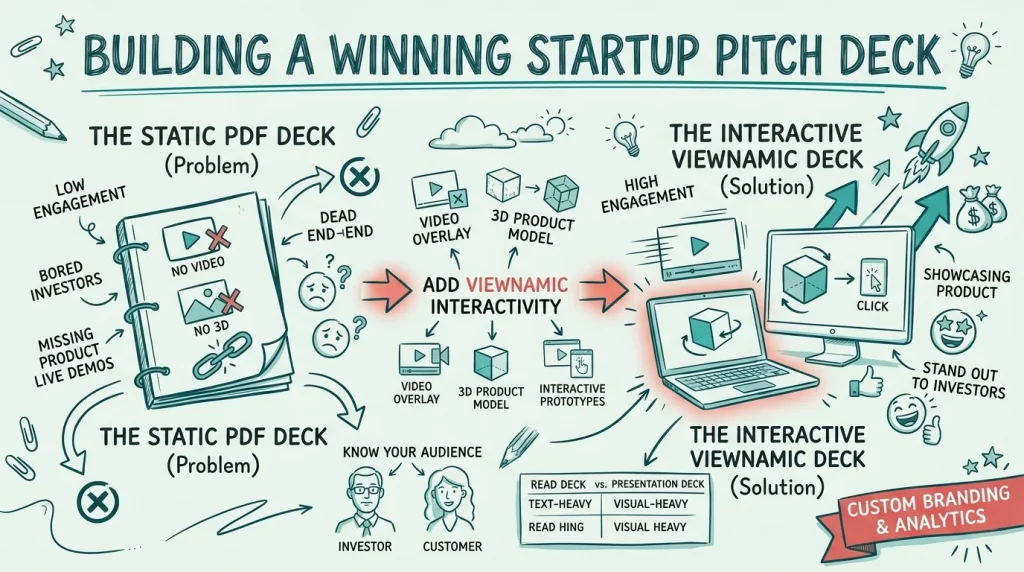
Pitch decks, sales slides and reports lose their videos and animations once they are exported as PDF. The result is a reliable file, but a less engaging presentation – and sending the original presentation file instead breaks fonts and layouts.

The Viewnamic way

Interactive PDF presentations that feel alive

Keep the reliability of a PDF and add the media your presentation needs. Share it through any browser – it works the same on laptops, tablets and phones.

  • Videos start directly inside the slide
  • Presentation mode with clicker and keyboard support
  • Works on any device – no software to install
  • See how often slides were opened and videos played (depending on your plan)

Features

Built for presenting

Present in the browser, share with one link and see how your deck is received.

How it works

Set up in a few clicks

No new design, no plugins, no special software for your readers.

  1. Export your slides as PDF

    Create your presentation as usual – in PowerPoint, Keynote, Google Slides or Canva – and export it as a PDF.

  2. Add videos and media

    Upload the PDF, mark the area on the slide where a video, 3D model or slideshow should appear and upload the file.

  3. Present or share

    Present in fullscreen with a clicker or the keyboard, or share the link so others can scroll through the deck.

Branding

Presentations in your corporate design

Show your logo and colours in the viewer and link to your website – so a shared deck looks as polished as your slides.

Included in selected plans. Compare plans

Illustration: a document viewer in your own colours, with your logo in the toolbar and a link to your website, set up in a small design panel.

Insights

Track how people engage with your deck

See how often your deck was opened, how long it was viewed and how often the embedded videos were played.

  • Visits How often each publication is opened.
  • Reading time per page How long readers stay – per publication and per page.
  • Media engagement Video and audio plays, opened 3D models, click dummies and slideshows, link clicks.
  • Downloads See how often the original PDF was downloaded.

Without cookies, without storing IP addresses – deleted after 12 months.

Included in selected plans. Compare plans

Illustration with sample numbers: the statistics page of one publication shows its visits, the average active reading time and the downloads, a graph of the visits over the last 30 days and how often each video and 3D model was viewed – measured without cookies and without storing IP addresses.

Used by garage33 for event presentations

The startup incubator garage33 at Paderborn University uses Viewnamic for event presentations whenever videos need to be part of PDF slides – fonts, layouts and design stay exactly as the startups designed them.

Comparison

How Viewnamic differs from traditional PDF tools

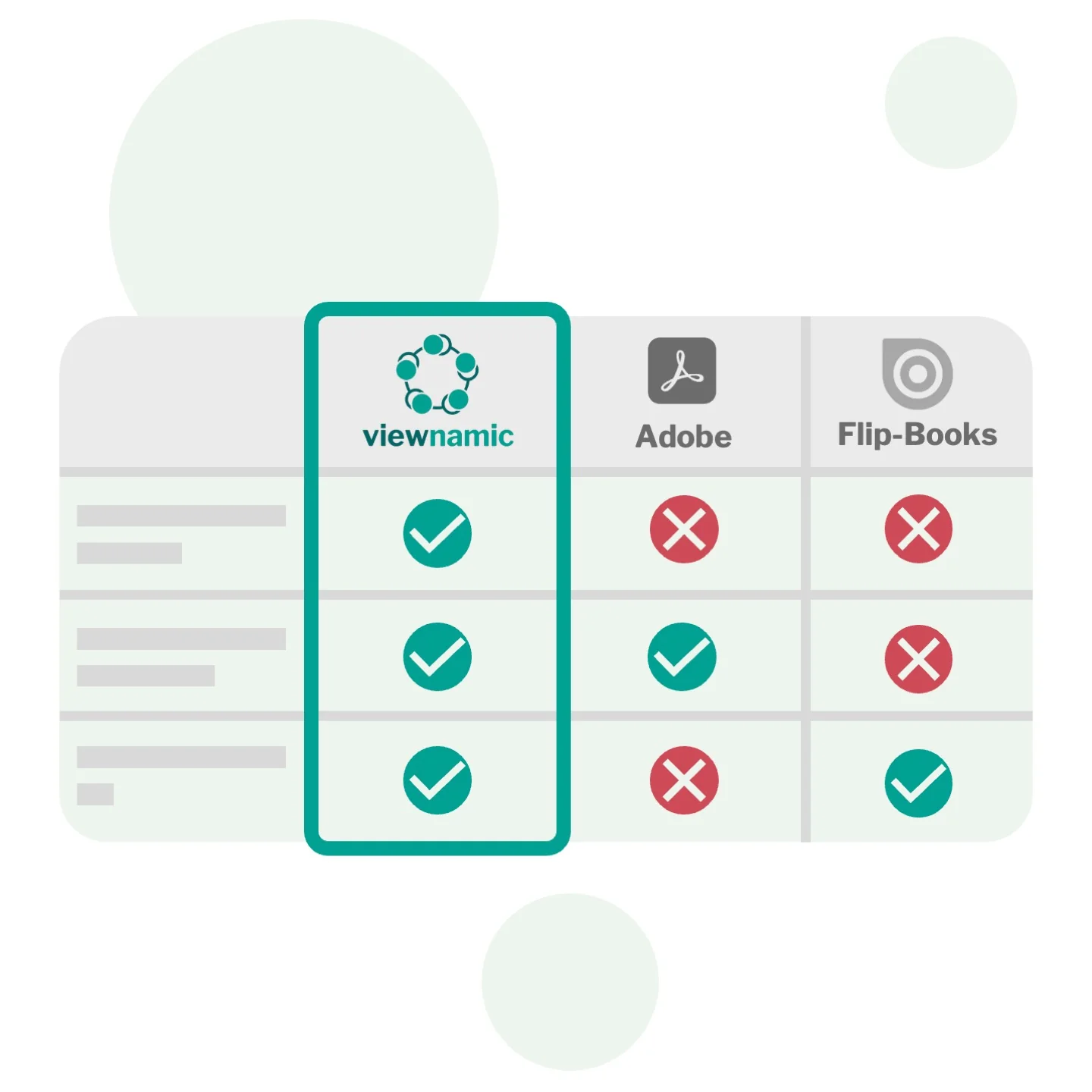
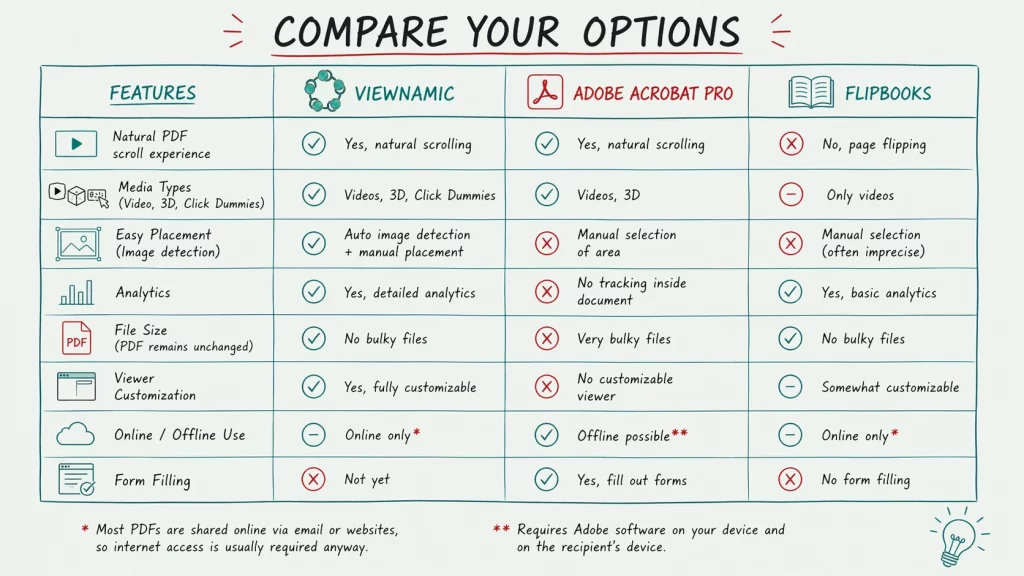
Viewnamic keeps your original PDF file size unchanged when adding videos – unlike Adobe, which embeds media directly into the file. And it offers a true PDF viewer that preserves layout and readability, while flipbook tools convert your document into their own format and usually offer only page-flip.

Adobe rich media
Media is embedded into the file: the PDF becomes huge and plays only in a few readers.
Flipbook tools
The document is converted into the tool’s own format, usually page-flip only; videos often open as YouTube links in an overlay, and 3D models or click dummies are usually missing.
Viewnamic
The original PDF stays unchanged and small; your own videos and other media play right on the page – in magazine, scroll or presentation mode and in every browser.

Comparison of Viewnamic with Adobe PDF rich media and flipbook tools: Viewnamic keeps the original PDF unchanged, works in every browser and supports videos, 3D models and analytics.

Blog

Further reading

FAQ

Frequently asked questions

Can I present in fullscreen?

Yes. Presentation mode shows one slide at a time in fullscreen. Move through the slides with a presentation clicker or the arrow keys – videos start right inside the slide.

Which presentation tools can I use?

Any tool that exports PDF – for example PowerPoint, Keynote, Google Slides or Canva. Fonts and layouts stay exactly as exported.

Do videos start automatically during a presentation?

You decide per video: it can start automatically as soon as the slide is visible and play in a loop, or start with a click.

Do I need an internet connection to present?

Yes, the presentation is loaded from Viewnamic in the browser. If downloads are allowed, keep the static PDF as an offline backup.

How can I embed a video (or other content) into a PDF?

Upload your PDF, choose the area where the video should appear and upload your video – that’s all it takes.

You decide how it plays: automatically as soon as it is visible, in a loop, with or without player controls. The video stays outside the PDF file, so the file stays as small as before.

Why doesn’t Adobe Reader show videos inside PDFs?

Adobe tools can embed videos and other rich media into a PDF, but the media only plays in a few PDF readers – in Apple Preview and many other common readers it simply doesn’t appear. Adobe also embeds the video into the file itself, which makes the PDF very large, hard to email and slow to navigate.

With Viewnamic, your original PDF stays lightweight and unchanged. The dynamic content is delivered through the browser-based viewer, so it works reliably on every device.

Do readers need special software or an account?

No. Your publication opens in any modern browser via a link or an embed on your website – no downloads, plugins or accounts required.

Newsletter

Get product updates and publishing tips

New features, examples and ideas for better digital documents – a few times a year, no spam.

Ready to upgrade your PDF presentations?

Upload a PDF, add your content and share the link – free for 30 days.