Skip to content
Viewnamic – home

Interactive PDF

Add videos, 3D models and interactive content to your PDF

Upload the PDF you already have, mark an area on a page and add a video, a 3D model, a click dummy, an image slideshow or a link. Viewnamic shows the media right on the page in the browser – and never changes your original PDF.

  • Free for 30 days
  • Hosted in Germany
  • No software needed for readers
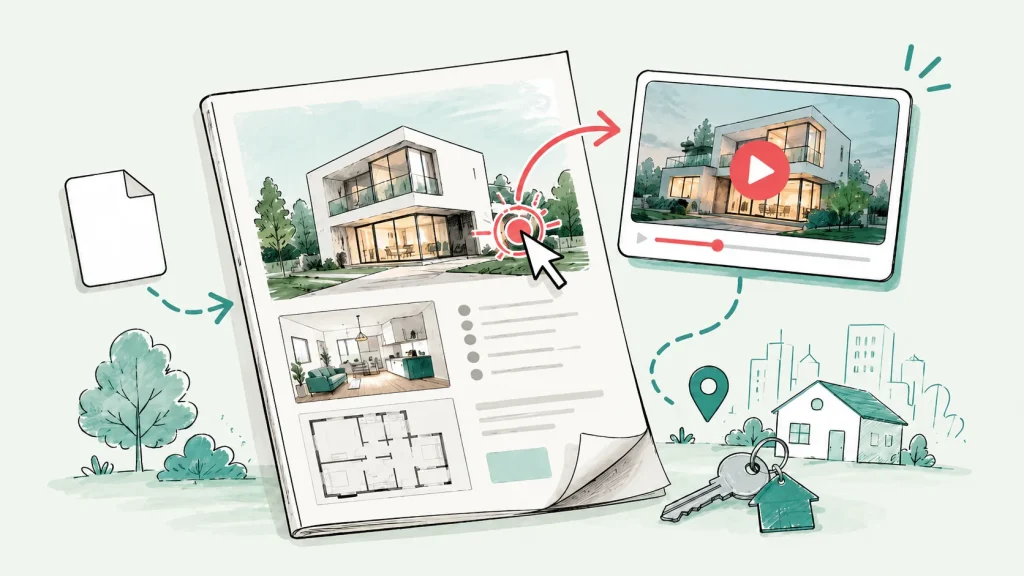
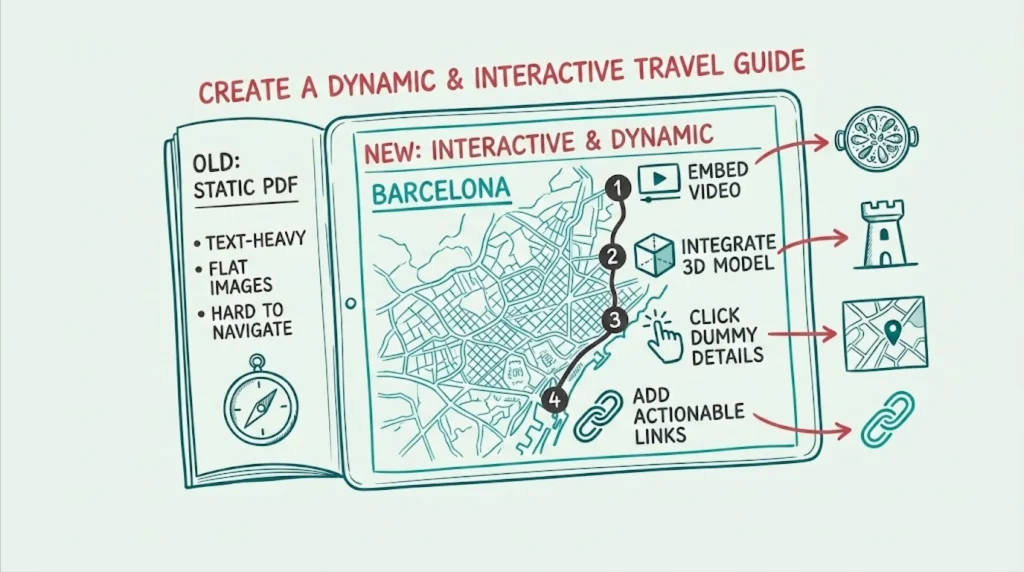
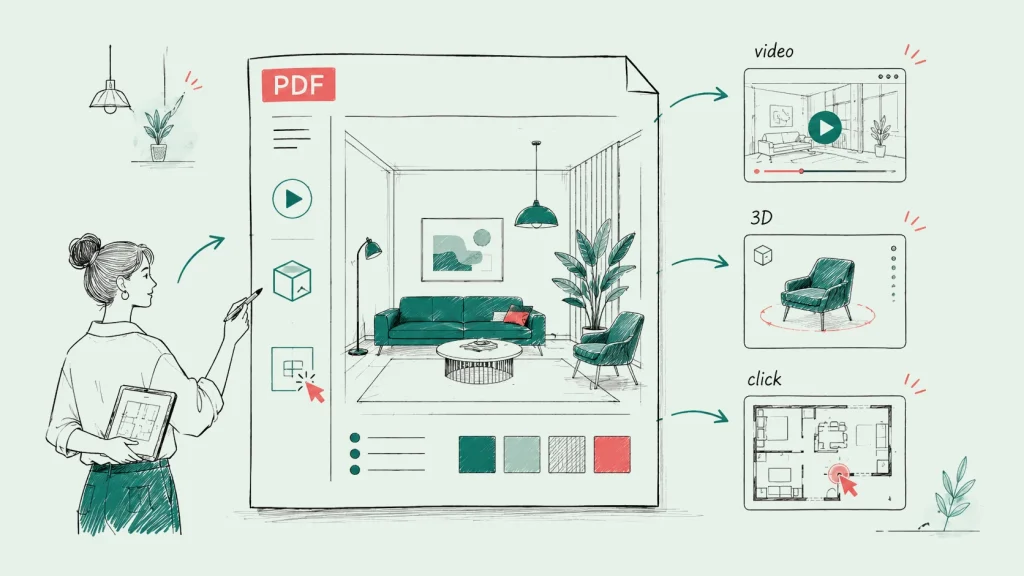
Illustration: an open digital magazine in the Viewnamic viewer. A video, a 3D model, an image slideshow and a clickable button sit directly on the pages of the original PDF.

Videos

Add videos to your PDF

Show what a still image cannot: a product in action, a walk through a property or the experiment behind a figure. Mark the area on the page, upload your video – and readers press play without leaving the document.

Formats
  • MP4
  • MOV
  • AVI
  • WebM
  • MKV
Typical uses
Product demos, property tours, experiment recordings, video CVs
  • Plays exactly in the area you mark on the page
  • Optional: starts automatically as soon as it is visible
  • Optional: plays in a loop – ideal for short product animations
  • Optional: with or without sound and player controls
  • Converted to MP4 in your browser before the upload, so it plays on every device

See it in a real document Interactive science paper

Illustration: a video plays inside an open digital magazine, placed exactly in the area of the page where it belongs. It can start automatically when it scrolls into view and loop; MP4, MOV, AVI, WebM and MKV files are supported.

3D models

Add interactive 3D models to your PDF

A picture shows one angle, a 3D model shows all of them. Place a model on the page and readers turn it and zoom in with the mouse or a finger – right in the browser, without a plugin or an app.

Formats
  • GLB
  • GLTF
  • OBJ
  • STL
Typical uses
Products, prototypes, machine parts, buildings, molecular structures
  • Rotate and zoom with mouse, trackpad or touch
  • Shown on the page, next to the text that explains it
  • Common export formats of 3D design, CAD and 3D printing tools

See it in a real document Interactive science paper

Illustration: a 3D model sits on a product page of the PDF. Readers rotate and zoom it right on the page; GLB, GLTF, OBJ and STL files are supported.

Click dummies

Add click dummies and product variants to your PDF

A click dummy turns static images into a small clickable prototype. Upload your screens, draw hotspots on them and choose which screen each hotspot opens. Readers switch between colour variants, open a detail view or follow a software workflow – without extra pages in your PDF.

Formats
  • JPG
  • PNG
Typical uses
Colour and material variants, software walkthroughs, step-by-step visual guides
  • Upload your screens as JPG or PNG
  • Draw clickable hotspots that lead to other screens
  • Built in its own visual editor, placed on the page like any other media

See it in a real document Travel guide Cala Millor

Illustration: a click dummy on a catalogue page. Each colour swatch is a clickable hotspot that switches to another screen, so readers can see the same chair in four colours without extra pages.

Image slideshows

Add an image slideshow to your PDF

Show the whole series instead of a single picture: property photos, product angles or portfolio work. A slideshow sits in one area of the page and keeps your document compact.

Typical uses
Property photos, product galleries, portfolios, before-and-after series
  • Several images in one marked area
  • Optional: changes images automatically at an interval you choose
  • Optional: loop and navigation arrows
Illustration: an image slideshow inside a property exposé. Several photos share one area of the page; readers browse them with arrows, or they change automatically at a set interval and loop.

How it works

Set up in a few minutes

  1. Upload your PDF

    Start with your finished PDF – exported from InDesign, PowerPoint, Word or any other tool.

  2. Mark the area

    Draw a rectangle on the page where the media should appear.

  3. Add your media

    Upload a video, 3D model, click dummy or images, or enter a link – and choose the options.

  4. Publish and share

    Send the link – and, depending on your plan, embed the publication on your website or list it on your public page.

Comparison

Why your original PDF stays unchanged

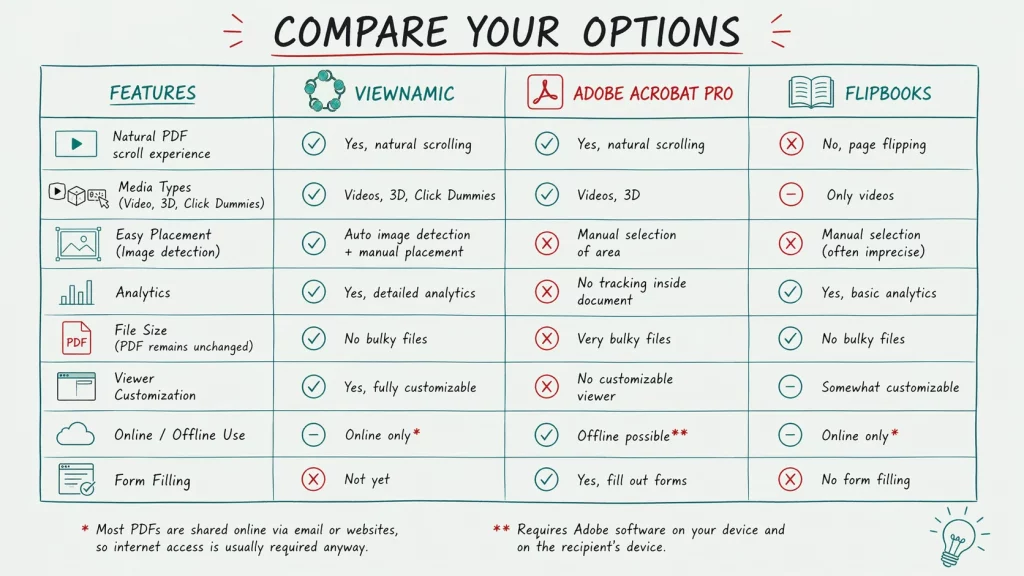
Adobe rich media writes videos into the PDF file – it becomes large, and the videos only play in a few PDF viewers. Flipbook tools convert your document and often show videos as YouTube links in an overlay, where ads can play first. Viewnamic leaves your PDF untouched and plays your own video files exactly where they belong on the page – with autoplay, loop and player controls as you choose.

  • No file bloat: the video never ends up inside the PDF
  • Share one link instead of a heavy email attachment
  • Add or remove media later without exporting a new PDF
  • Fully supported
  • Partly or with limits
  • Not possible
Comparison of Viewnamic, Adobe rich media and flipbook tools
Viewnamic Adobe rich media Media inside the PDF file Flipbook tools Online page-flip platforms
Your document
Original PDF stays unchanged and small No media written into the file, no conversion Fully supported Not possible: Media are embedded – the file gets large Not possible: Converted into the tool’s own format
Layout exactly as in your PDF Pages, fonts and design as you created them Fully supported Fully supported Partly or with limits: Pages are converted, often into images
Videos and interactive content
Videos exactly where they belong on the page Fully supported Partly or with limits: Only in Acrobat and a few PDF apps Partly or with limits: Often in an overlay, not on the page
Your own video files, without ads MP4, MOV, AVI, WebM or MKV – no third-party player Fully supported Fully supported Partly or with limits: Often YouTube links – ads can play first
Video options: autoplay when visible, loop, controls Fully supported Partly or with limits: Set in Acrobat Pro, only work in Acrobat Partly or with limits: Usually not adjustable
Click dummies Fully supported Not possible Not possible
3D models Fully supported Partly or with limits: Only in Acrobat on desktop Not possible
Media play in every browser and on every device Including phones, Apple Preview users and web browsers Fully supported Not possible: Only in a few PDF viewers Fully supported
Reading, sharing and privacy
Magazine, scroll and presentation mode Magazine mode is included in selected plans. Fully supported Partly or with limits: Scroll and fullscreen in Acrobat, no page-flip Partly or with limits: Mostly page-flip only
Reader statistics Reader statistics are included in selected plans. Fully supported Not possible Partly or with limits: Depends on tool and plan
Hosted in Germany GDPR-compliant, with a data processing agreement Fully supported Not applicable – a file you host or send yourself Partly or with limits: Only a few smaller providers host in Germany

Examples

See it in real documents

Open real publications in the Viewnamic viewer – exactly as readers experience them.

Solutions

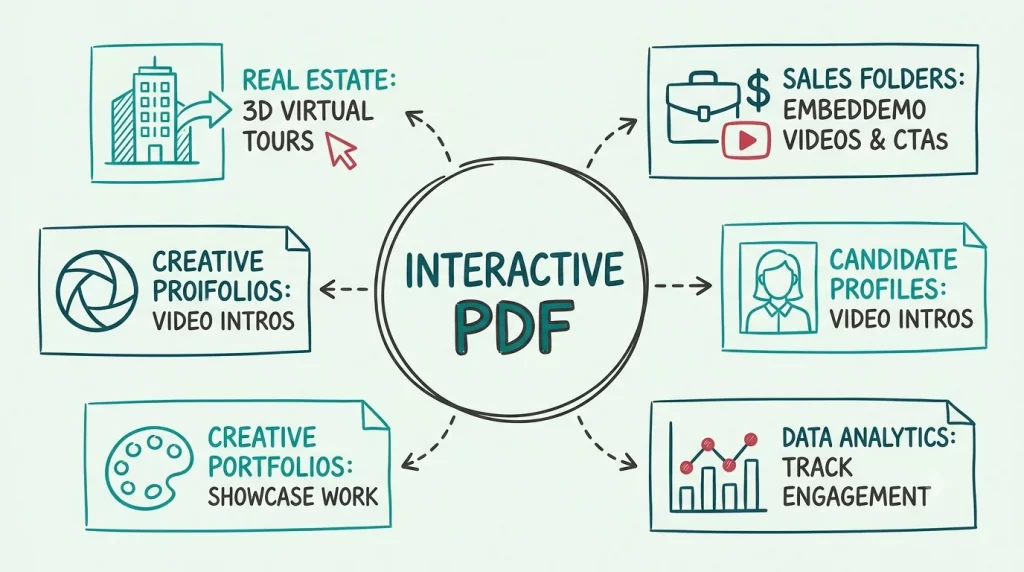
Where teams use it

  • Use case

    Catalogs & Brochures

    Catalogs, brochures and lookbooks with product videos, image slideshows and clickable links to your shop.

  • Industry

    Real Estate

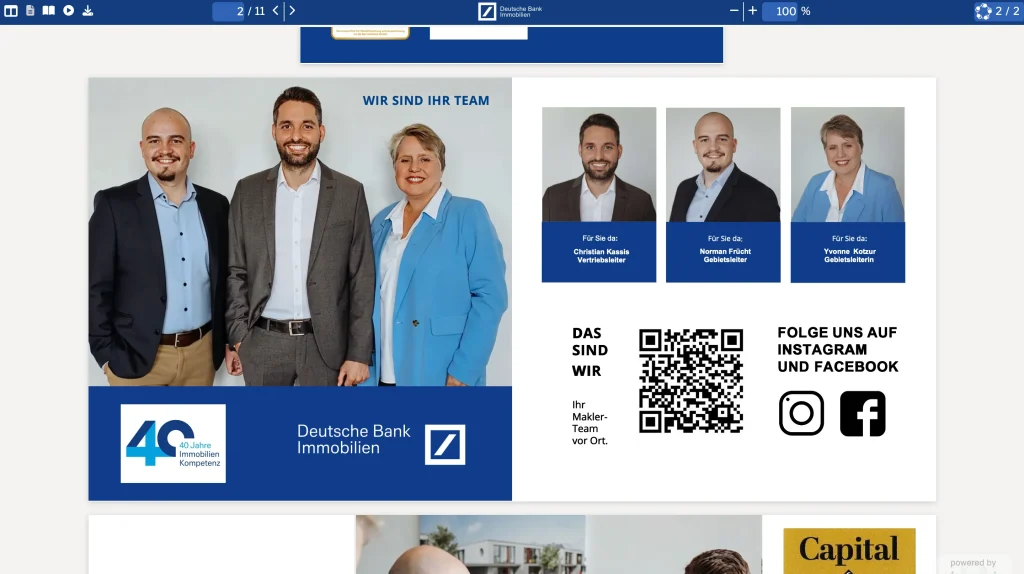
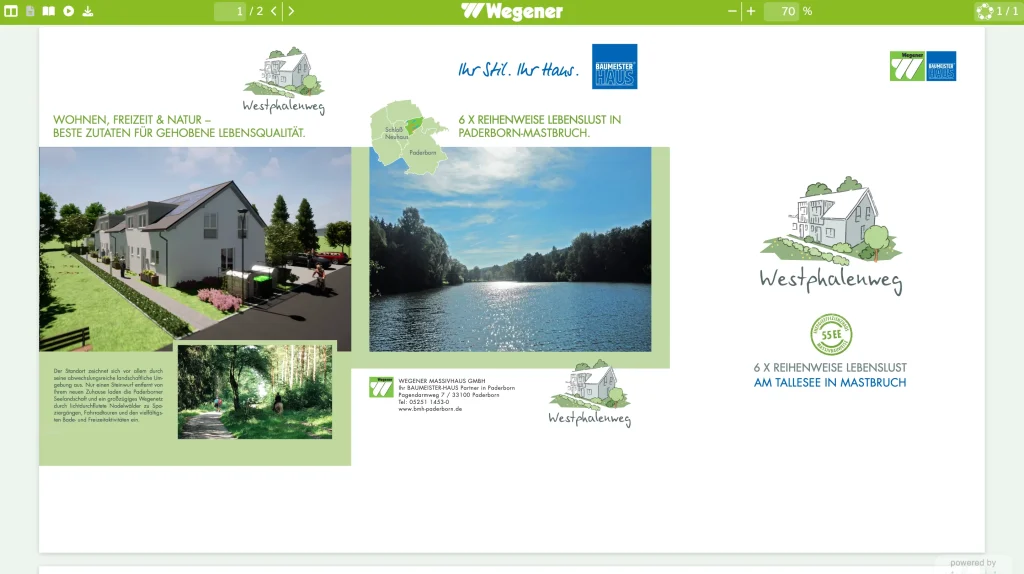
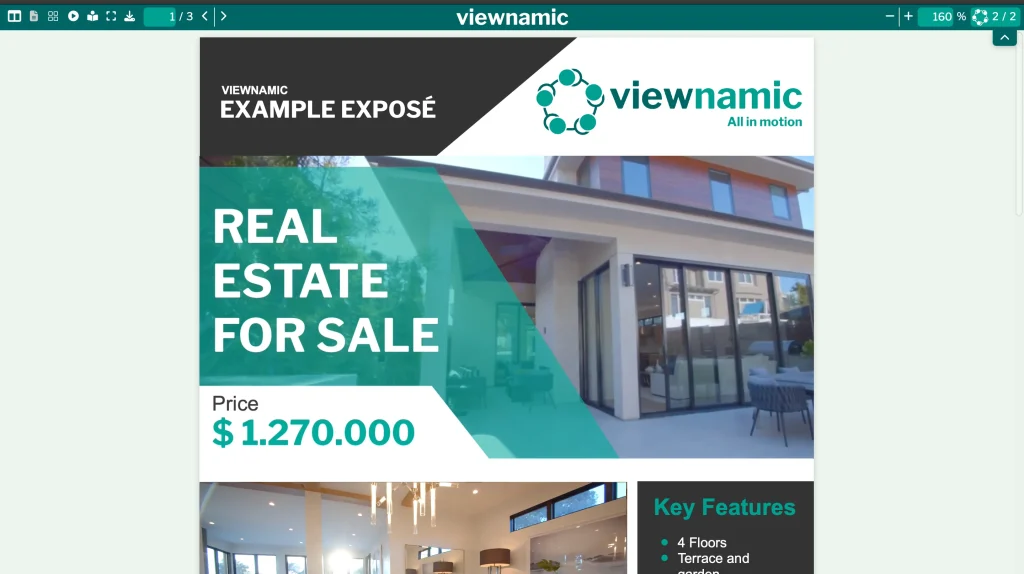
    Exposés and brochures that show properties in motion – with property videos, tours and image slideshows.

  • Use case

    Guides & Manuals

    Travel guides, manuals and software guides with videos, clickable maps and click dummies.

  • Industry

    Architecture & Design

    Portfolios and design concepts with videos, 3D models and image slideshows that convey space, materials and atmosphere.

From the blog

Guides and background

  • Guide

    Why Multimedia PDFs Are The Next Big Leap

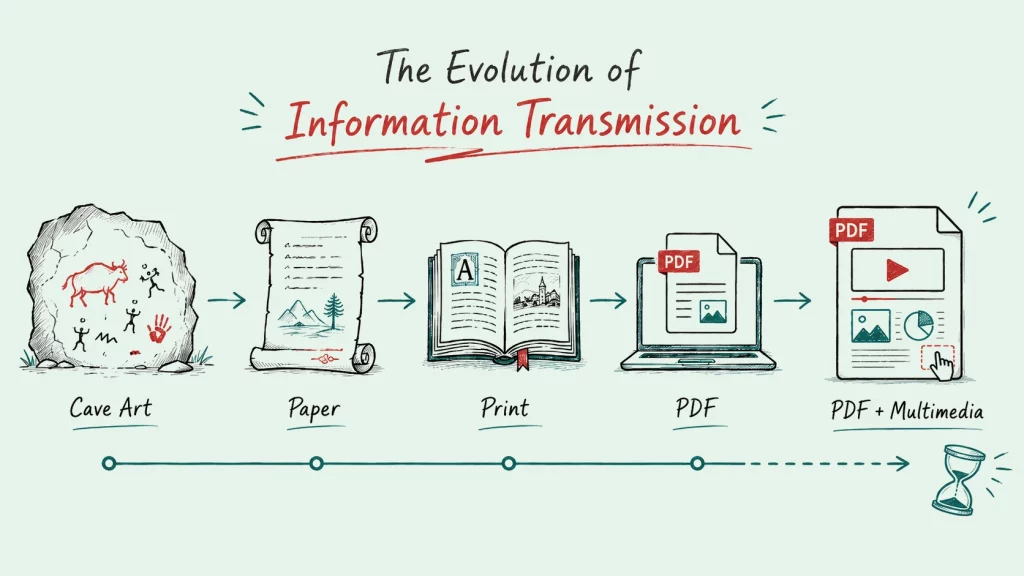
    From cave paintings to paper, print and PDFs, humans have always improved how they share information. Now the next evolution is here: multimedia PDFs that combine familiar documents with video, interaction and dynamic content.

FAQ

Frequently asked questions

How do I add a video to a PDF?

Upload your PDF to Viewnamic, mark the area where the video should play and upload the video (MP4, MOV, AVI, WebM or MKV). Choose whether it starts automatically, plays in a loop and shows player controls – then share the link to your publication. Tip: if the video should cover a picture in your layout, Viewnamic can also find that picture and place the video over it.

Can I embed a video directly into the PDF file?

With Adobe rich media you can, but the video is then stored inside the file. The PDF becomes very large, and most PDF viewers – including Apple Preview and web browsers – do not play it. Viewnamic keeps the video outside the file and plays it on the page in the browser-based viewer, so it works on every device.

Which file formats does Viewnamic support?

Videos: MP4, MOV, AVI, WebM and MKV. 3D models: GLB, GLTF, OBJ and STL. Click dummies: screens as JPG or PNG. Image slideshows combine several images in one area, and link areas turn any rectangle on the page into a link.

Does adding media change my original PDF?

No. The media and their positions are stored separately and shown on top of the page in the Viewnamic viewer. Your PDF keeps its file size and layout.

Do readers need special software to see the interactive content?

No. Readers open the publication in any modern browser on a phone, tablet or computer – no download, plugin or account required.

Can readers still download the PDF?

If your plan includes downloads and you allow them, readers can download the original PDF. It contains your pages exactly as designed; videos, 3D models and other media are only shown in the Viewnamic viewer.

Try it with your own PDF

Upload a document you already have and see the result in minutes – free for 30 days.

Newsletter

Get product updates and publishing tips

New features, examples and ideas for better digital documents – a few times a year, no spam.