
Editor basics: add interactive content to a PDF
In the Viewnamic editor you mark areas on your PDF pages and fill them with videos, audio, 3D models, click dummies, slideshows or links. Your PDF file itself stays unchanged.
In the Viewnamic editor you mark areas on the pages of your PDF and fill each area with a video, an audio file, a 3D model, a click dummy, an image slideshow or a link. Your PDF file stays unchanged – readers see the content on top of the page in the viewer.
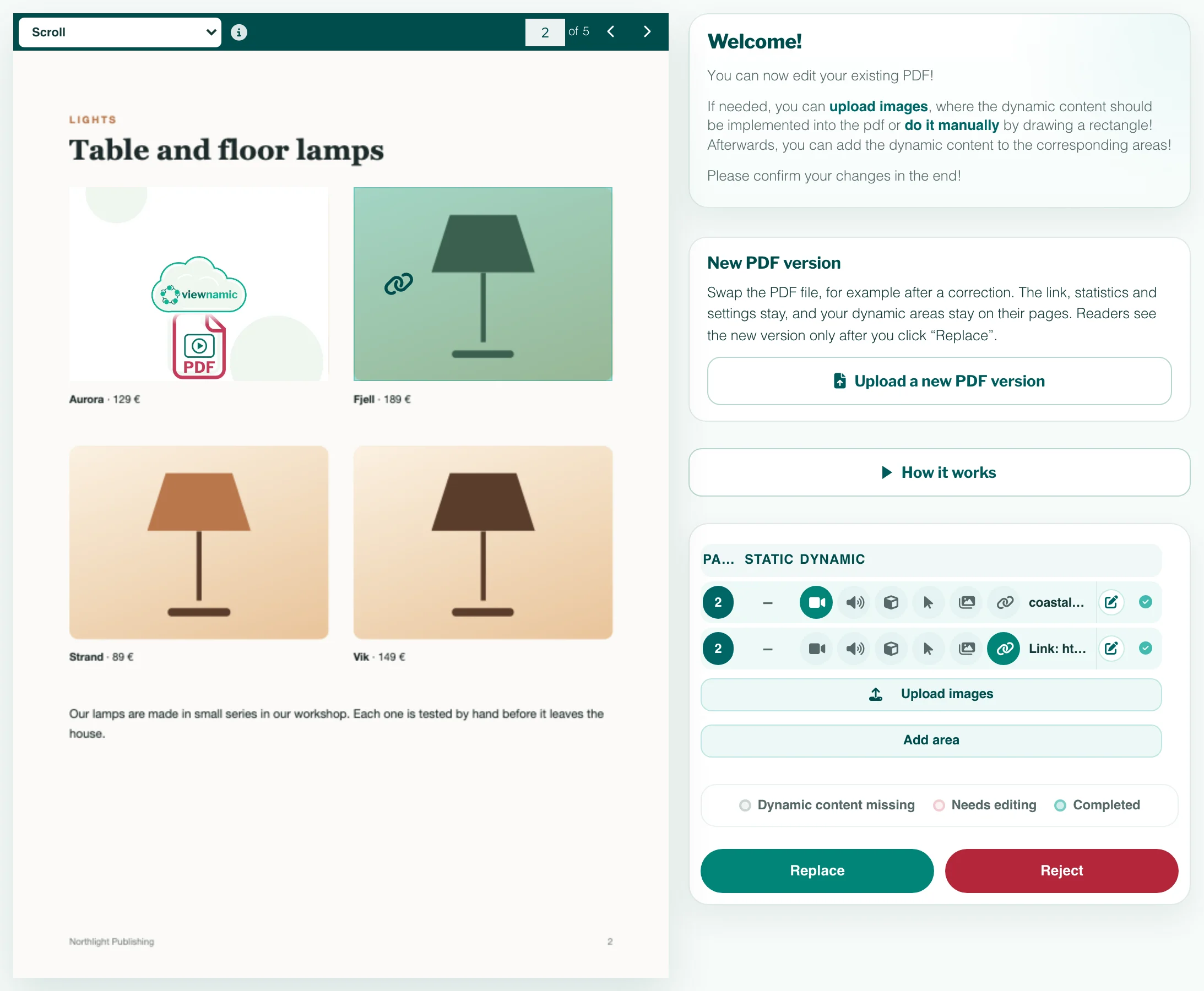
Open the editor
- New PDF: in the Workspace, drop the file onto the Dynamic PDF card or click Select or drop one PDF. Viewnamic checks the file and opens the editor by itself (see Upload your first PDF).
- Saved publication: open the ⋯ menu on its project tile and choose Edit Project.
- Unfinished PDF: click Continue unfinished project on the Dynamic PDF card.
Step by step
- Click Add area in the right column. The window Edit dynamic area opens.
- Drag a rectangle on the page where the content belongs (or type its corner positions) and click Save.
- Click the empty area on the page. The Asset Library opens with the tabs Videos, Audio, 3D Models, Click Dummies, Slideshow and Link.
- Choose a file you uploaded before, or add a new one with Upload file. A video, audio file or 3D model can also be dropped straight onto the area.
- Wait until the right column marks the area Completed. To set options such as loop or autoplay, click the pencil icon next to the area.
- Above the page, choose how readers first see your PDF: Scroll or Magazine (see Magazine view). Magazine needs a plan with the page-flip effect; without it, the option is greyed out and the editor shows Plan upgrade required.
- Click Save for a new PDF or Replace for a saved one.
Let Viewnamic find the areas
If the spot for your content shows a picture – a video still, a product photo – click Upload images and upload that picture. Viewnamic searches your pages and places an area where it finds it; in a PDF with more than 10 pages, you can name the page to search for each picture. Pictures it cannot find are listed with Needs editing: draw those areas yourself.
Save, Cancel, Replace or Reject
- Save publishes a new PDF. Viewnamic shows its link and then takes you back to the Workspace.
- Cancel deletes the new PDF and everything you added to it.
- Replace publishes your changes to a saved publication. The link stays the same.
- Reject discards all changes since you last published.
Cancel and Reject cannot be undone. Viewnamic asks you to confirm first.
You can save once at least one area is completed and no file is still being processed. To publish a PDF without any interactive content, upload it as Static PDF in the Workspace instead.
How your changes reach readers
For a saved publication you always work on a copy. Readers keep seeing the published version until you click Replace; from then on, everyone who opens or reloads the publication gets the new one – in the viewer, on your public page and in embeds on your website. If you leave the editor without Replace, nothing changes for readers, and the next time you open the editor you start again from the published version. A new PDF keeps your areas, so you can stop and continue later with Continue unfinished project. It stays when you open a saved publication in the editor in the meantime; only uploading another new PDF replaces it.
Good to know
- How it works in the right column plays a short animation of the steps. It also opens by itself the first time you upload a new PDF in a browser.
- Each area holds one piece of content. Choosing another type replaces it.
- Uploaded files go into your profile’s library (Workspace → Your dynamic content) and can be reused in other PDFs.
- Areas are drawn with a mouse or trackpad, so use a computer for the editor.
Link areas are part of every plan and never count toward a limit. Each area you fill with a video, audio file, 3D model, click dummy or slideshow counts toward your plan’s total of interactive content – 3 in the free trial. The Publisher plan includes link areas only. Details: Pricing.
Questions
Can I add content to a PDF I uploaded as a static PDF?
Yes. Open the project with Edit Project in the ⋯ menu of its tile, add your areas and publish them with Replace.
Do readers who download the PDF get the videos?
No. A download is the PDF file itself, without the interactive content – that plays only in the Viewnamic viewer.
Can I delete a file from my library that a PDF uses?
No. The Workspace lets you delete a video, audio file or other item only when no project uses it. Remove it from the PDF in the editor first.