
Upload your first PDF
In the Workspace, choose Dynamic PDF to add interactive content in the editor, or Static PDF to publish one or several finished PDFs as they are. Every upload becomes a project with its own link.
You upload PDFs in the Workspace under Add PDF. Choose Dynamic PDF if you want to add videos, audio, 3D models or links in the editor, or Static PDF to publish one or several finished PDFs as they are. Every upload becomes a project with its own link.
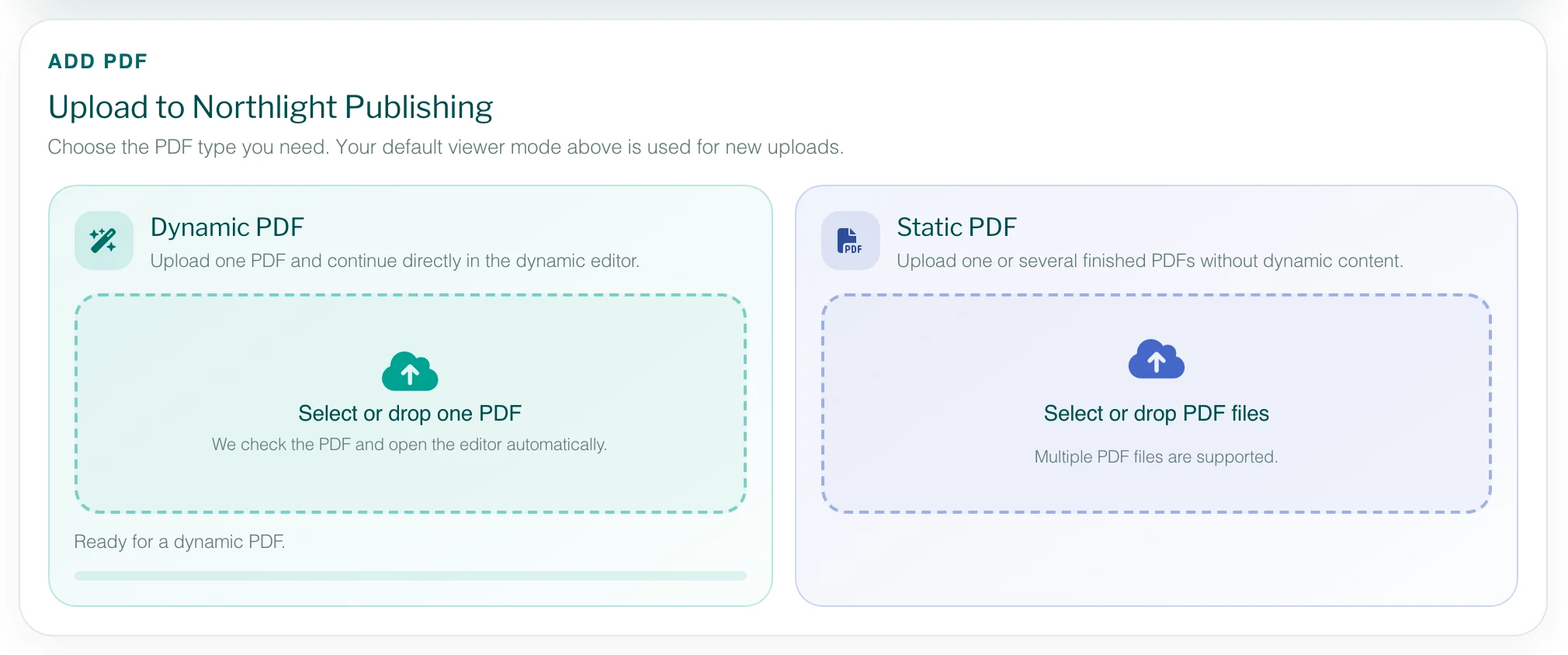
Upload a PDF for the editor (Dynamic PDF)
- Open the Workspace.
- Optional: at the top, choose the Default viewer mode – Scroll or Magazine. New uploads start in this view.
- In the Dynamic PDF card, drag one PDF onto Select or drop one PDF, or click there to choose a file.
- Keep the page open while the PDF is checked and uploaded. The editor then opens by itself.
- Add your interactive content and click Save. How this works is described in the editor basics.
Upload finished PDFs (Static PDF)
- In the Static PDF card, drag one or several PDFs onto Select or drop PDF files.
- Optional: if your plan includes a public page and it is switched on, tick Add uploaded PDFs to the public page to list them there right away. The option appears once you have chosen files.
- Click the upload button below the list – it names the number of files, for example Upload 3 PDFs. Each file shows its progress and result.
File limits
- Only PDF files can be uploaded.
- Each file can be up to 500 MB in every plan.
- How many pages per PDF, how many publications and how much storage you have depends on your plan – see plans and limits. If a PDF exceeds a limit, the Workspace tells you which one.
What happens after the upload
- The project is named like the file, without “.pdf” – as you see it on your computer. You can change the name later with Rename in the project’s ⋯ menu.
- The project appears in your Workspace with a picture of its first page and its link – a dynamic PDF once you have saved it in the editor.
- New projects are Link only: anyone with the link can open them, but they are not on your public page – unless you ticked the option for static PDFs. You can change this in the access settings.
- A static PDF can get interactive content later: open the project menu and choose Edit Project.
- If you leave the editor before saving a dynamic PDF, Continue unfinished project in the Dynamic PDF card takes you back.
Magazines with double pages
Many magazine PDFs store the inner pages as two-page spreads. Viewnamic recognises this during the upload and splits the spreads into single pages, so that the magazine view can show them as real spreads with page flip. If these spread pages are rotated in your PDF, rotate them back to normal before uploading. More in the magazine view.
Questions
Can I upload the same PDF twice?
Not as two dynamic projects in the same account: Viewnamic recognises the file and offers “Open existing project”. To update a publication, upload a new version of its PDF instead.
Why does the default viewer mode say “Magazine · unavailable”?
Magazine as the default view with the page-flip effect is not part of your current plan. It is included in the plans for magazine and publication hosting.