
Access modes: Secure, Link only and Public page
Every publication has one of three access modes. Link only: anyone with the link can open it. Public page: it is also listed on your public page. Secure: only recipients of a personal link can open it.
Every publication in Viewnamic has one access mode. With Link only, anyone who has the link can open it. With Public page, it is also listed on your public page. With Secure, only people with a personal secure link can open it, after they confirm their email address.
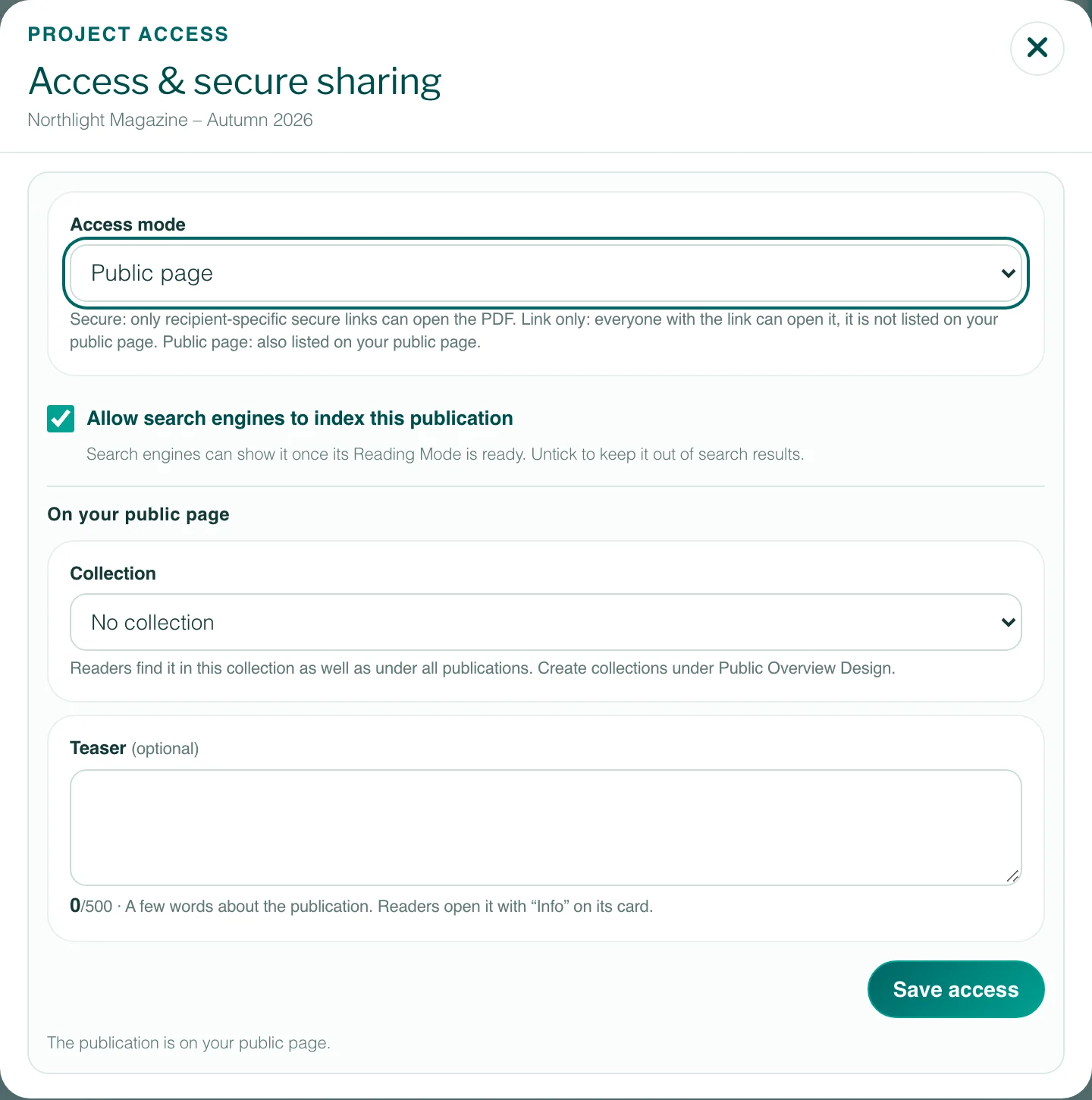
Change the access mode
- Open the Workspace and find the project.
- Open the project’s ⋯ menu and choose Access & secure sharing.
- Under Access mode, choose Secure, Link only or Public page.
- For Link only and Public page: keep Allow search engines to index this publication ticked, or untick it.
- Click Save access.
New publications start as Link only, unless you tick Add uploaded PDFs to the public page when you upload a Static PDF. The badge on the project tile shows the current mode: Secure, Link only or Public page.
The three modes compared
| Mode | Who can open it | Your public page | Search engines | Website embed |
|---|---|---|---|---|
| Secure | Only recipients of a personal secure link | Not listed | Never | Not possible |
| Link only | Anyone who has the link | Not listed | Can find it where the link is published | Possible with website embedding in your plan |
| Public page | Anyone | Listed | Can find it | Possible with website embedding in your plan |
Public page
Public page lists the publication on your profile’s public page right away. You can also use the Public page switch on the project tile: switched on, the project becomes Public page; switched off, it becomes Link only, and its link keeps working. The date field next to the switch sets the day from which the publication appears on your public page (Schedule a publication).
If you switched your public page off under Public Overview Design, nothing can be listed there, and the dialog says so. More in Your public page.
Public page is available in the plans with a public page: Publisher, Publisher Plus, Premium and Tailored. With Premium, you can also choose a collection and a teaser for the publication here (Collections and teasers).
Switching between modes
- To Secure: the normal link no longer opens the PDF. The publication leaves your public page, and website embeds stop working. Then create personal links for your recipients (Share a PDF securely).
- Away from Secure: Viewnamic asks first, because all active secure links of this publication are revoked. If you switch back to Secure later, you create new links.
- From Public page to Link only: the publication leaves your public page. Its link keeps working.
Revoked secure links cannot be restored. Recipients need a new link.
Secure belongs to “Secure sharing with one-time codes”, part of the Tailored plan (see Pricing). Without it, you cannot choose Secure.
Good to know
- Link only is not private: whoever has the link can open the publication and pass the link on. Search engines can also find it where the link is published. For confidential documents, use Secure.
- The buttons All, Public page, Link only and Secure above the project list filter your projects by access.
- In a team, the account owner, admins and managers can change the access. Editors and analysts cannot (Team members).
- A PDF uploaded long ago may still have an old password of its own: readers have to enter it, and the PDF cannot be embedded. The account owner removes it with Remove password in the project’s ⋯ menu – afterwards the PDF opens as its access mode allows. A removed password cannot be restored.
Questions
Do my website embeds work again when I switch back from Secure?
Yes. Embed codes you already use show the publication again as soon as it is Link only or Public page.
Why can I not choose Public page?
Either your plan has no public page, or the public page of this profile is switched off under Public Overview Design. Switch it on there first.