
The public page: all your publications on one page
Your public page lists the publications of a profile on viewnamic.com – with cover, name and date. A publication appears there as soon as you set its access to “Public page”.
Your public page is a page on viewnamic.com that shows the publications of one profile – each with its cover, name and publication date, below your logo and description. A publication appears there when you give it the access mode Public page. Readers open it with one click, without an account.
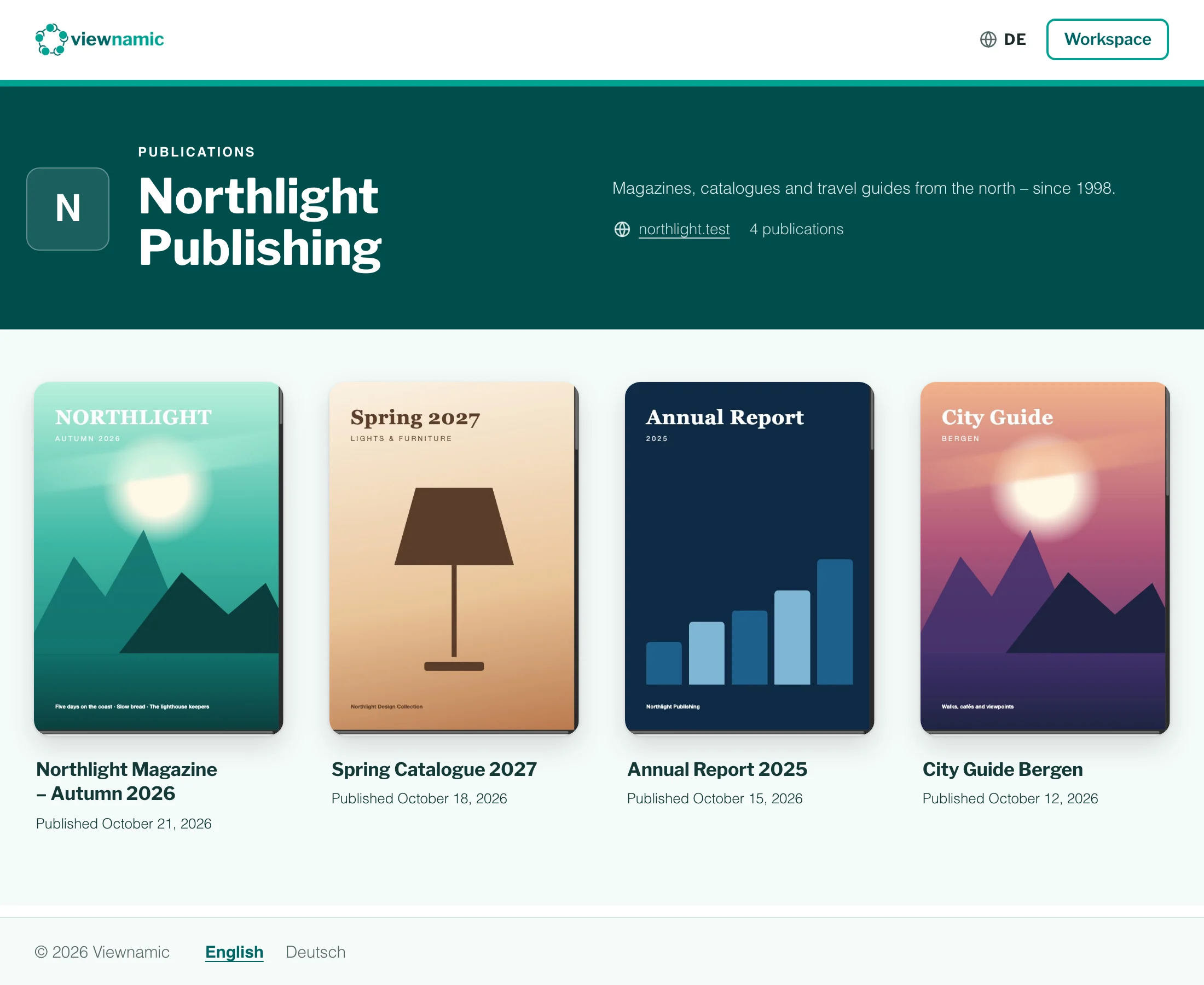
What readers see
- A header with your logo (or the first letter of your profile name), the profile name, your description, location, website and the number of publications.
- One card per publication with its cover, its name and “Published” with its date. The newest comes first, 20 per page.
- A click on a card opens the publication in the viewer in a new tab.
The address contains your profile name: viewnamic.com/public-overview/your-profile/. The Workspace shows it at the top as Public page: /public-overview/your-profile/, and Open page under Public Overview Design opens the page. To change its look, see Design your public page.
Put a publication on your public page
- Open the Workspace and find the project in your list.
- Switch on Public page on its tile. Alternatively, open the project menu (⋯), choose Access & secure sharing, select Public page as the Access mode and click Save access.
- Optional: change the date next to the switch. Readers see this date, and the page is sorted by it.
When you upload static PDFs, tick Add uploaded PDFs to the public page to list them right away.
Schedule a publication
Pick a date in the future: the tile shows Scheduled, and the publication appears on that day. An earlier date works too, for example for an older issue. To set the date of many projects at once, click Select next to the project filters, select the projects and use Publication date.
Take a publication off the page
Switch Public page off on its tile. The publication then has the access mode Link only: it leaves the public page, and its link keeps working. Publications with Secure or Link only are never listed – see Access modes.
Moving a Secure publication to the public page revokes all of its active secure links. Viewnamic asks before it does so.
Switch the whole page on or off
Under Public Overview Design, the switch Public page: on / Public page: off controls the page of the active profile. A change applies at once.
- While it is off, readers cannot open the page, and nothing can be added to it. Your publications still open through their own links.
- What you had listed comes back as soon as you switch the page on again.
- Each profile has its own public page, design and switch.
“More from …” in the viewer and below embeds
While the page is on, every publication of the profile shows a small More from badge with your logo or name in the bottom left corner of the viewer. It opens your public page in a new tab, so readers find your other publications. Embed codes you copy in the Workspace add the line “More from profile name” below the PDF. When you switch the page off, the badge disappears and new embed codes leave the line out; codes already on a website keep it until you replace them with a newly copied code.
Search engines
As soon as it lists a publication, your public page can appear in search results. An empty page says “No public publications yet” and stays out of search results. Whether a single publication may be indexed is set per publication – see Get your PDF found in search engines.
The public page is included in the Publisher, Publisher Plus, Premium and Tailored plans – see Pricing. Collections and teasers on it come with Premium: Collections and teasers.
Questions
Do readers need an account to open my public page?
No. Anyone can open your public page and the publications listed on it, without an account or login.
Can I have several public pages?
Each profile has its own public page with its own address, design and publications. Several profiles are available in the Tailored plan.