
Design your public page
Under Public Overview Design in the Workspace you set the description, logo, header picture, colours and style of your public page. The live preview shows every change before you save it.
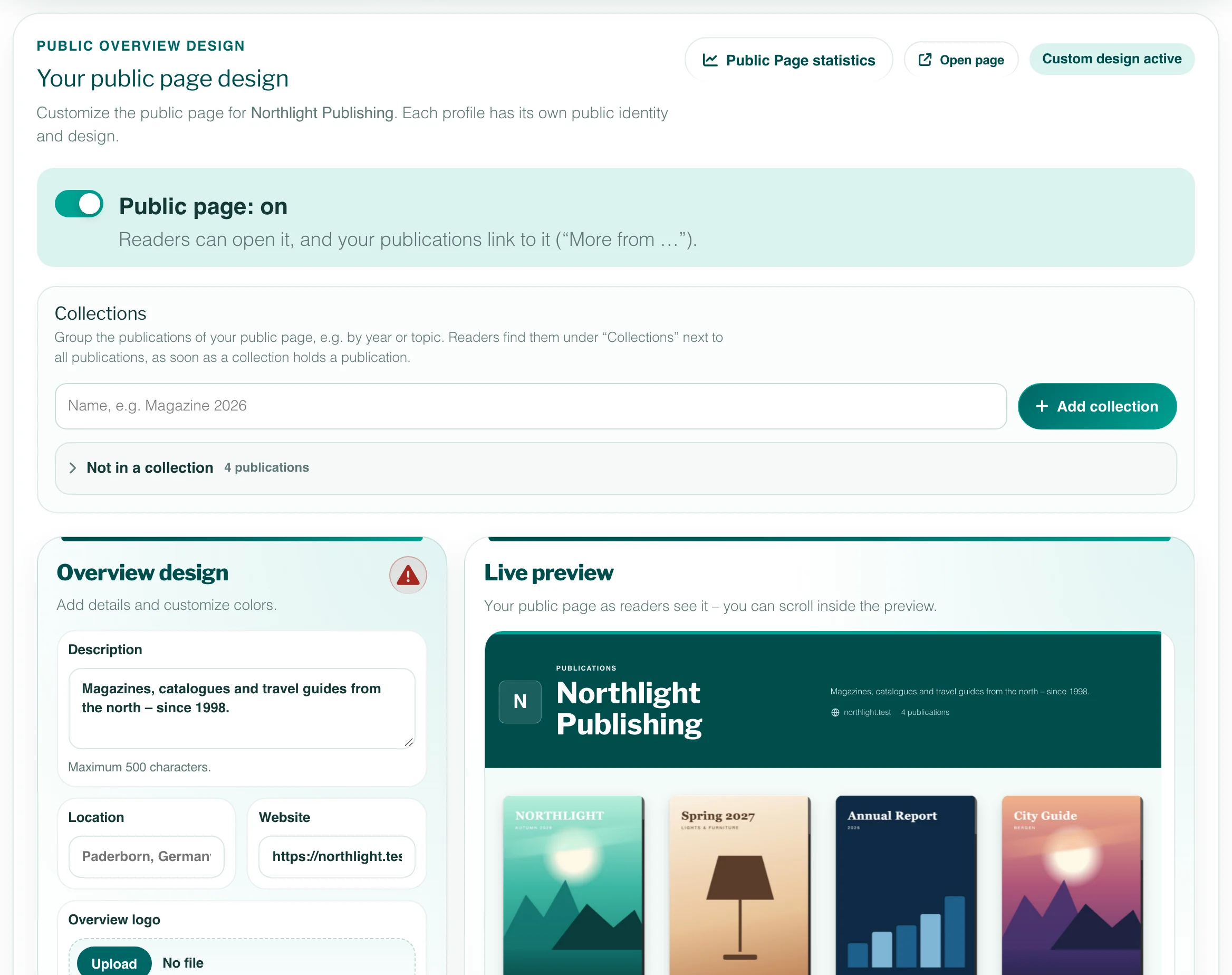
You design your public page in the Workspace under Public Overview Design: a description, your logo, a header picture, colours and a few style choices. The Live preview next to the form shows the page as readers will see it, and Save publishes your changes.
Step by step
- Open the Workspace. If you have several profiles, switch to the one whose page you want to design.
- Scroll down to Public Overview Design.
- Enter a Description, your Location and your Website.
- Upload your Overview logo and adjust its Logo size.
- Under Header and style, add a Header image if you like and choose the Alignment. Less common choices are under More options.
- Choose your Page colors.
- Check the Live preview and click Save. The button appears as soon as you change something.
Text and logo
- Description: a short introduction to your publications or organisation, up to 500 characters.
- Location and Website appear below the description. With a website, your logo links to it as well; both open in a new tab.
- Overview logo: PNG, JPG or SVG, up to 2 MB. It is separate from the logo in your viewer, and a new upload replaces the old one. Without a logo, the page shows the first letter of your profile name.
Fields you leave empty are not shown on the page.
Header picture
A Header image (PNG, JPG, WebP or SVG, up to 5 MB) brings a picture of your brand into the header. With a picture, its settings appear below it: under Picture you choose Behind the text or Above the text, as a banner that shows the whole picture. Behind the text, Header color over the picture lays a shade of your header colour over it so the text stays readable; switched off, the picture keeps its own colours and only the text gets a soft shade.
Drag the picture in its frame, or use the arrow keys, to choose which part shows. Zoom enlarges it up to 300 %; below 100 % it gets smaller, down to Whole picture with your header colour around it. The page keeps your choice on every screen, from a wide monitor to a phone. To take the picture off, tick Remove header image and save.
Style choices
- Alignment: the header content Left or Centered.
Under More options:
- Header accent: Top line, Top shape or None.
- Description & details: where description and details stand on wide screens – Right, Right, aligned right or Below the name.
- Font: Modern or Classic (a serif font).
- Corners: Rounded or Square for covers, buttons and boxes.
Colours
Under Page colors you set Header, Header text, Accent and Page. More colors holds Accent text, Card, Card text, Secondary text and Cover whitespace – the colour around covers whose format does not fill the frame. The question-mark button next to Overview design opens a contrast check that shows whether your colour combinations are easy to read. A text colour that would be hard to read on its background is shown a little darker or lighter on the page – just as far as needed, in the same hue. The preview shows it, and a note below the colour names the colour readers see.
Live preview
The preview is your public page with your own publications – the first page of them. You can scroll inside it like in a browser. As long as nothing is listed, it shows sample publications. Changes appear in the preview at once; readers see them only after you click Save.
Good to know
- Each profile has its own design.
- Your overview logo and header colours also appear on the “More from” badge in the viewer – see The public page.
- Open page at the top of the section opens your public page in a new tab.
Reset returns this profile’s page to the Viewnamic default design: it deletes the overview logo and the header image and clears the description, location and website. This cannot be undone.
You can design the public page in every plan that includes it: Publisher, Publisher Plus, Premium and Tailored – see Pricing.
Questions
Can I use the logo of my viewer?
Upload it once more under “Overview logo” – the public page has a logo of its own. The viewer’s logo is set under “PDF Viewer Design”.
Why can’t I find Public Overview Design in my Workspace?
The section appears when your plan includes a public page and you may manage the public page of the profile. In a team, this depends on your role.