
Some things are easier to hear than to read: the voice of a tour guide, an interview in the original, the pronunciation of a word, the sound of an engine. If your document could speak, it would explain more in thirty seconds than a whole page of text. No wonder “How do I add audio to a PDF?” is one of the questions we hear most often.
The short answer: the PDF format can store sound, but most of your readers will never hear it. In this guide, you’ll learn why that is, how to add audio to a PDF so that it plays in every browser and on every phone, and where sound makes a document better.
Why audio in a PDF usually stays silent
With tools such as Adobe Acrobat Pro, you can embed an MP3 file in a PDF. On your own computer, in Acrobat, everything works. Then you send the file – and the trouble begins:
- Most viewers don’t play it. The PDF viewers built into web browsers and the preview apps on phones and tablets usually ignore embedded sound. Your readers see the page, but they hear nothing – and often don’t even know that there was something to hear.
- The file gets heavier. Embedded audio is stored inside the PDF. A few minutes of sound add several megabytes, which slows down the download and makes the file harder to send by email.
- Every change means a new file. To replace a recording, you have to edit the PDF and send it to everyone again.
For most audiences, putting the sound into the file itself is a dead end. The reliable approach is to leave the PDF as it is and play the audio next to it – in the browser.
How audio works in Viewnamic
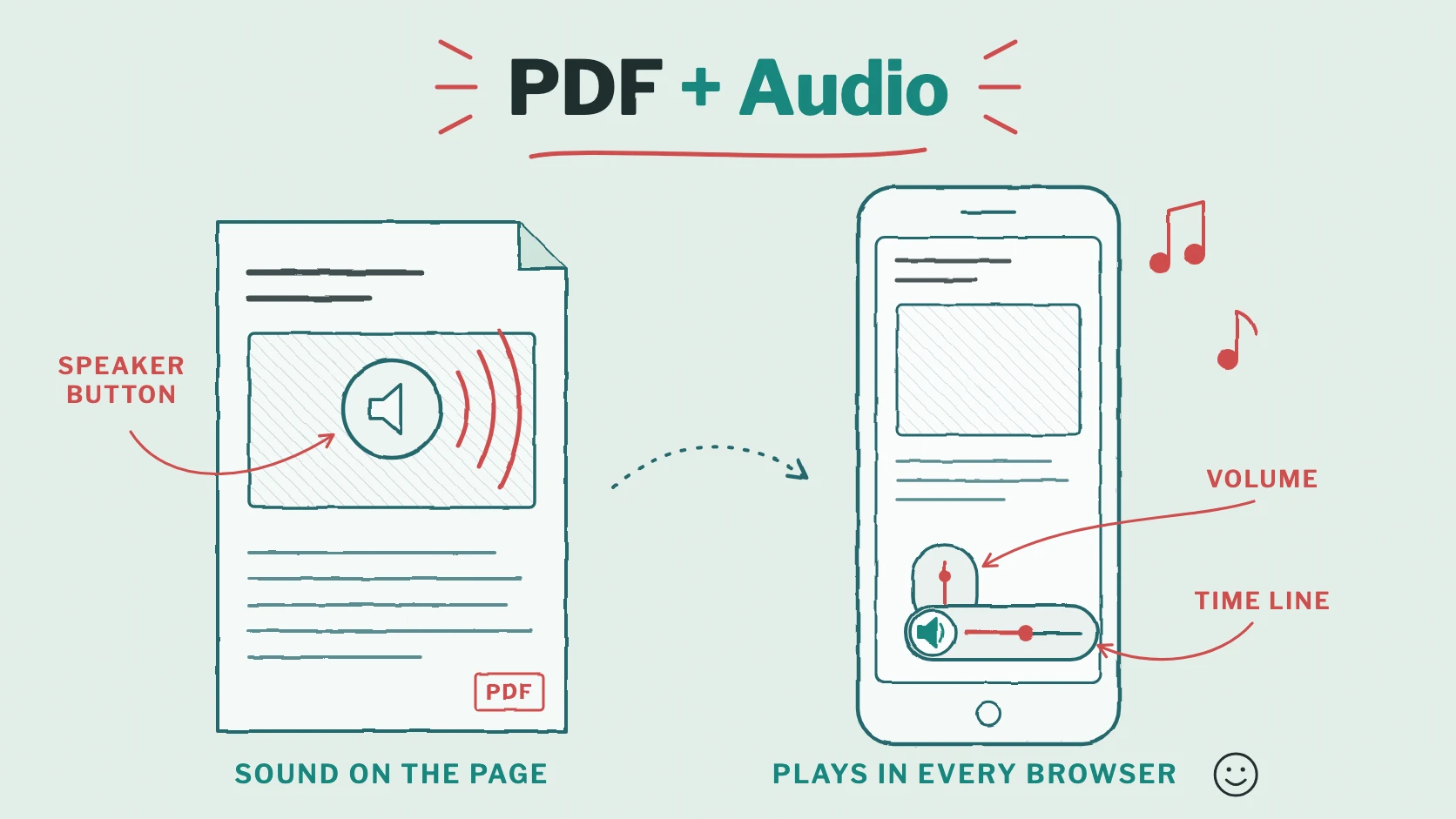
Viewnamic takes a different route. Your PDF stays exactly as you designed it. The audio file is stored separately and placed on an area of a page – next to a photo, a quote or a heading. Readers open the publication in the Viewnamic viewer in their browser, on a computer, tablet or phone, without an app, a plugin or an account.
This is what your readers see:
- A small round speaker button on the page. One click starts the audio, another one pauses it. Audio never starts by itself.
- A time line and a volume slider while the audio plays and the reader points at the button. On iPhones and iPads, readers use the device’s volume buttons.
- One recording at a time: starting a second audio stops the first, so sounds never overlap.
- Keyboard access: readers reach the audio with Tab, start it with Enter and jump five seconds with the arrow keys.
Two settings decide what happens when your readers turn the page:
- Keep playing on other pages: the audio goes on while readers browse. It then appears as a small audio badge in the corner of the viewer, with a time line and pause, until its page is back or the recording ends – ideal for narration or background music.
- Loop: the audio starts again when it ends.
How to add audio to a PDF in five steps
- Upload your PDF in the Viewnamic Workspace. To try it first, use Try without an account.
- Draw an area: in the editor, drag a small rectangle where the speaker button should sit. The button appears in the middle of the area.
- Upload your audio file in the Audio tab of the Asset Library – MP3, M4A, AAC, WAV, OGG, Opus, FLAC or AIFF. You can even use a video file; Viewnamic then takes its sound. The file is converted in your browser into a compact M4A file of up to 500 MB, enough for several hours of sound.
- Choose the settings “Keep playing on other pages” and “Loop” if you need them.
- Publish and share: send the link, embed the PDF on your website or list it on your public page.
Every option is explained step by step in our help center: Add audio to a PDF.
Eight ideas: where sound makes a PDF better
- Audio guides: a travel guide or city map with a short recording for every stop – listen on the spot, read at home. More ideas in our guide to interactive travel guides.
- Museums and exhibitions: the curator explains the key works right in the catalogue.
- Language courses and teaching material: pronunciation, listening exercises and dialogues next to the text they belong to.
- Magazines: the interview as the original recording, a podcast episode next to the article or a greeting from the editor-in-chief. See our guide to publishing magazines online.
- Sales folders and catalogues: the sound of the product – an engine, a loudspeaker, an instrument – or a personal message from your sales team.
- Annual and sustainability reports: a statement from the management in their own voice.
- Training material and manuals: spoken instructions for every step, so that hands and eyes stay on the task.
- Portfolios: musicians, voice actors, sound designers and composers present their work where it belongs – right next to the project.
Tips for audio that people actually listen to
- Keep it short: one to three minutes per topic work better than one long recording. Several short clips on several pages are easier to find.
- Put the button where it belongs: next to the photo, quote or step it explains. A short hint in your layout, such as “Listen to the interview”, tells readers that there is something to hear.
- Record cleanly: a quiet room and a simple external microphone make a bigger difference than any editing afterwards. Keep all recordings at a similar volume.
- Let readers decide: audio never starts by itself in Viewnamic – a good thing on the train, in an open-plan office or late in the evening.
- Add a transcript – more on that in the next section.
Accessible audio: transcripts and the Reading Mode
Not everyone can or wants to listen. In the Workspace, you give each audio file an accessible title, a short description, a transcript and, if you like, a link to an accessible alternative. Readers find this information under “Accessibility information” in the viewer, and the description and transcript also appear in the Reading Mode – the text version of your PDF.
A transcript helps people who cannot hear the audio, readers in a quiet place and everyone who prefers to skim. And because search engines read the Reading Mode, the spoken words can also help your publication to be found.
See how often your audio is played
With the statistics of the Premium and Tailored plans, you see for each audio file in how many visits it was played – next to visits, reading time per page and downloads. That tells you which recordings your readers care about. The statistics work without tracking cookies.
Frequently asked questions
Can I add an MP3 file to a PDF?
Yes. Upload the MP3 file in the Viewnamic editor and place it on the page. Viewnamic converts it into an M4A file that plays in every modern browser. Your PDF file itself stays unchanged.
Does the audio play on iPhone and Android?
Yes. Readers open the publication in the browser of their phone and start the audio with a tap. On iPhones and iPads, they set the volume with the device’s buttons.
Does audio make my PDF bigger?
No. The audio file is stored separately from your PDF, so the PDF keeps its original size.
Which plans include audio?
Audio counts as interactive content, just like a video: the Free plan and Single include up to three interactive elements, High Five ten, Publisher Plus 50 and Premium an unlimited number. The Publisher plan is made for PDFs without interactive content. All details are on the pricing page.
Conclusion: let your PDF speak
Sound hidden inside a PDF file plays for only a few readers. Placed on the page in the Viewnamic viewer, it plays for everyone – in every browser, on every device, without changing your file. Start with one short recording on the page where a voice explains the most, and see how your readers respond.
Want to try it? Upload a PDF without an account or start with the Free plan.
Publish your PDFs with Viewnamic
Host, share and enhance your documents – with the Free plan, online for 30 days.