
A 3D model explains a product better than ten photos: a machine part you can turn, a building you can see from every side, a chair you can look at from below. No wonder engineers, architects, product designers and marketing teams want to put their models where customers already look – into the PDF.
The classic way to do this is the 3D PDF. In this guide, you’ll learn what a 3D PDF is, why many of your readers will never see the model inside it, and how to show 3D models in a PDF that anyone can turn in the browser – on a computer, a tablet or a phone.
What is a 3D PDF?
For about twenty years, the PDF format has been able to carry 3D data. The models are stored inside the file in special formats – U3D or PRC – and a suitable viewer lets readers rotate and zoom them, sometimes even cut through them. 3D PDFs are created with Adobe Acrobat Pro or with plugins and converters for CAD programs, and they are used mainly in engineering, manufacturing and technical documentation.
Why many readers never see the model
- Only a few programs display 3D: as a rule, the model appears in Adobe Acrobat and Acrobat Reader on the desktop. The PDF viewers built into browsers and most apps on phones and tablets show an empty area or a still image instead.
- 3D is often switched off: even in Acrobat Reader, 3D content may be disabled for security reasons, and readers first have to allow it – a hurdle many of them won’t take.
- Special formats: your model has to be converted to U3D or PRC, which often takes extra software, and textures or details can get lost on the way.
- Heavy files: the 3D data sits inside the PDF and makes it larger to send and to download.
For an engineering team with Acrobat on every desk, a 3D PDF can work. For customers, prospects and students who open your document on a phone or in a browser, it usually doesn’t.
The alternative: 3D models on the PDF page, in the browser
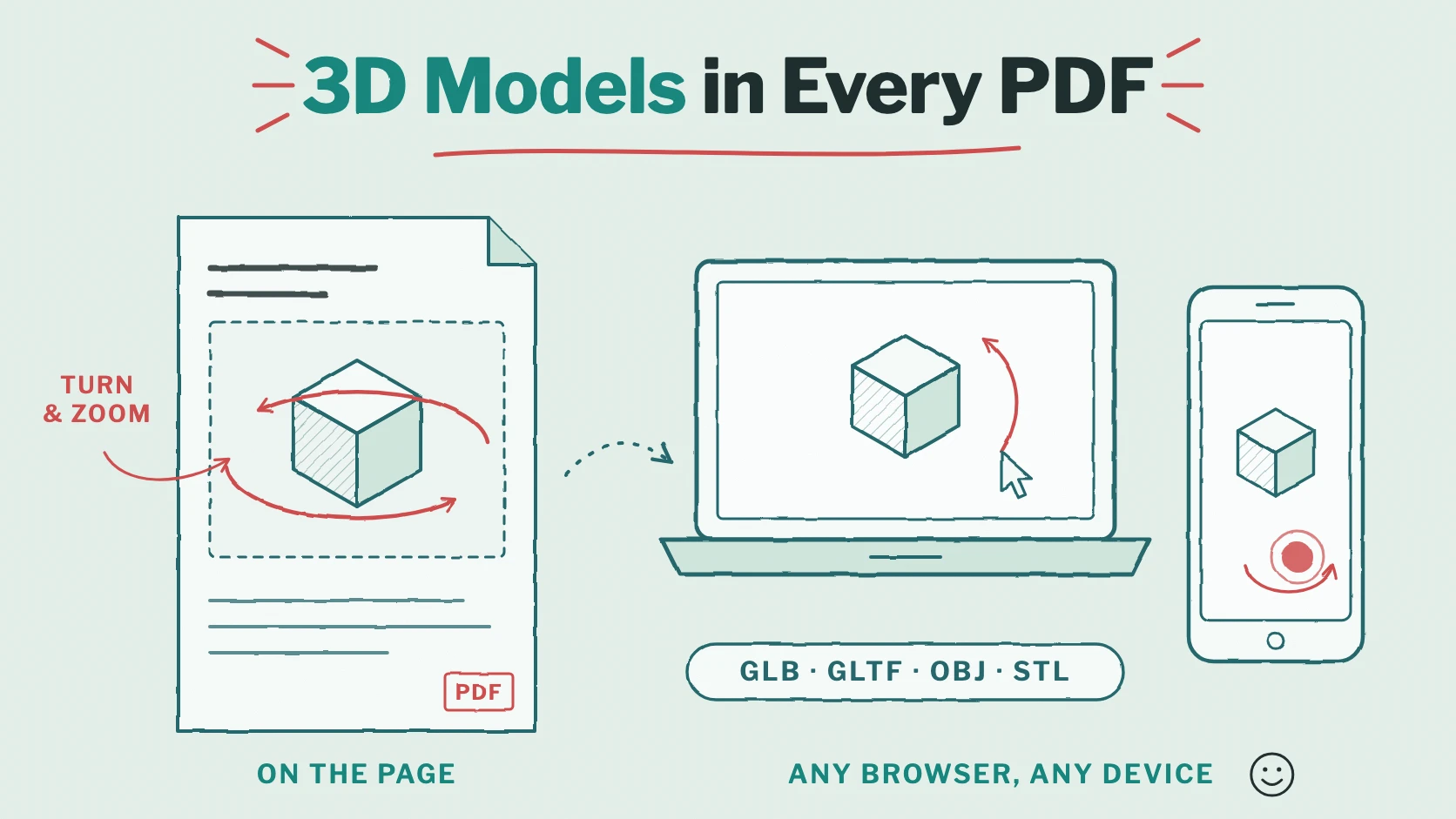
Viewnamic leaves your PDF unchanged and places the 3D model on an area of the page. Readers open the publication in the Viewnamic viewer – in any modern browser, on a computer, tablet or phone, without a plugin or an app.
- One click to start: the area shows a cube icon. A click loads the model right into the page, and the page stays visible around it.
- Turn and zoom: readers turn the model by dragging it with the mouse or a finger and zoom with the scroll wheel or two fingers.
- Clear controls: buttons take the model back to its starting position, start or stop the rotation and close it. With the keyboard, the arrow keys turn it, + and − zoom and the space bar starts or stops the rotation.
- Your start view: you decide from which angle readers first see the model and whether it turns by itself.
- A background that fits: white, black, transparent – so that the page shows through – or a colour of your choice.
How to add a 3D model to a PDF
- Upload your PDF in the Viewnamic Workspace.
- Draw an area in the editor where the model belongs – for example over the product photo.
- Upload the model in the 3D Models tab of the Asset Library: GLB, glTF, OBJ or STL, up to 500 MB per file.
- Set the start view: turn and zoom the model in the preview until it looks right, choose the background and switch on auto rotate if you like.
- Publish: share the link, embed the PDF on your website or list it on your public page.
Our help center explains every setting and shows it in a short video: Add a 3D model to a PDF.
Preparing your model: the right format
- GLB is the safest choice: it holds the model with its colours and textures in a single file. Many 3D programs export it directly – Blender, for example.
- glTF is the same modern standard for 3D on the web; GLB is its single-file form.
- OBJ is supported by almost every CAD and 3D program.
- STL contains only the shape – typical for 3D printing. Viewnamic shows it in one colour.
- Keep it light: smaller files open faster. Reduce polygons and texture sizes where readers won’t notice the difference.
Where 3D models make a difference
- Product catalogues and datasheets: machine parts, tools and devices from every angle. See our guide to interactive datasheets.
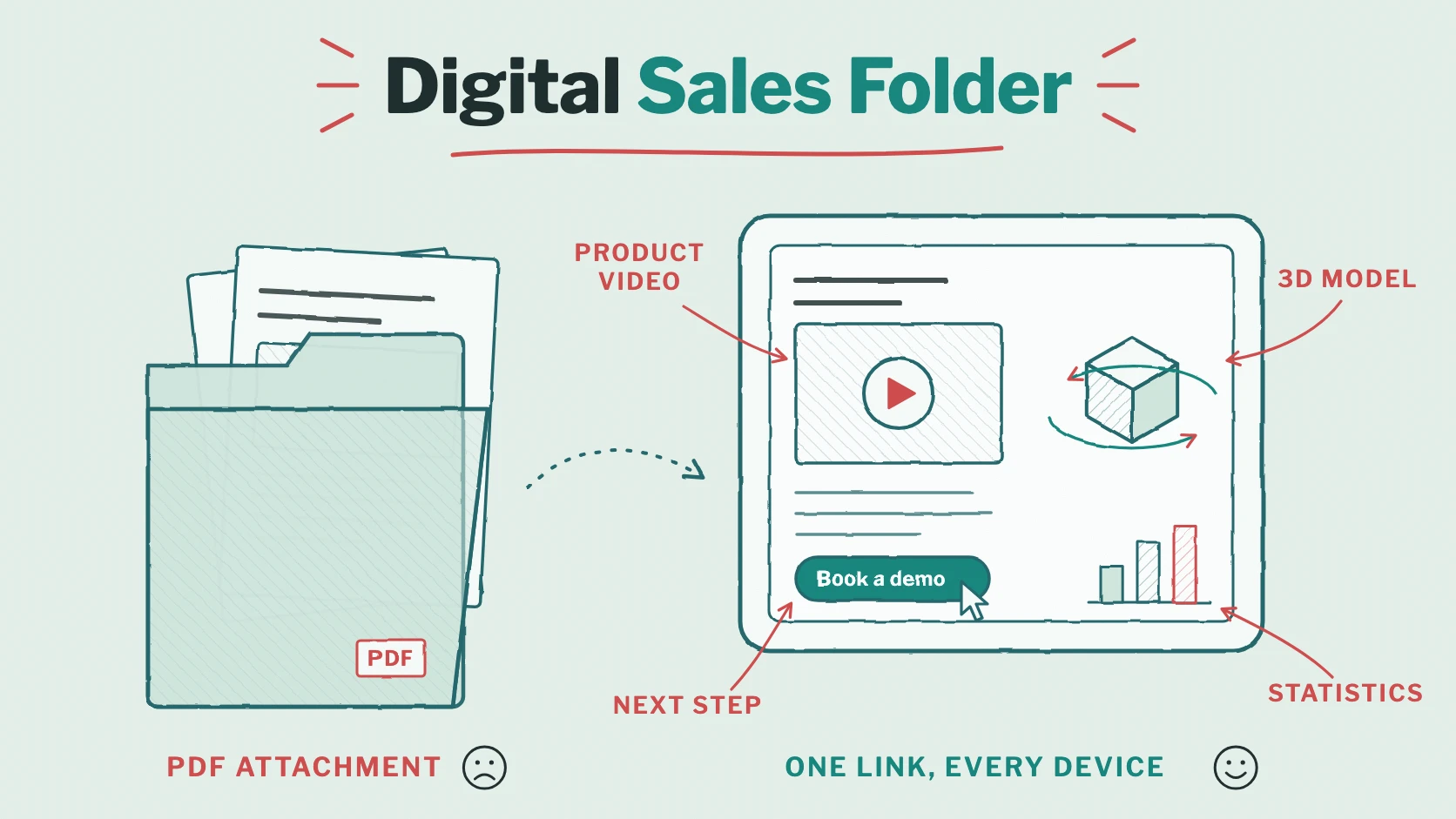
- Sales folders: prospects explore the product before the first meeting – more in our guide to the digital sales folder.
- Architecture and real estate: a building model in the portfolio or the exposé. More on Architecture & Design.
- Interior design and furniture: chairs, lamps and kitchens that clients can look at from below and behind. See interactive PDFs for interior design.
- Education and research: molecules, anatomy, fossils or machines in teaching material and papers.
- Museums and collections: objects from the archive in the exhibition catalogue.
Accessible 3D content
For readers who can’t use a 3D model, you add an accessible title, a description, an alternative image and a link to an accessible alternative in the Workspace. A model that carries no information can be marked as decorative. Readers find these details under “Accessibility information” in the viewer, and the description also appears in the Reading Mode, the text version of your PDF.
Frequently asked questions
Can I open a 3D PDF in the browser?
Usually not: the PDF viewers built into browsers don’t display U3D or PRC models. If you place the model on the page with Viewnamic instead, it opens in every modern browser.
Do 3D models work on iPhone and Android?
Yes. Readers open the publication in the browser of their phone, tap the cube icon and turn the model with a finger. On phones and tablets, one model is open at a time.
Which plans include 3D models?
3D models count as interactive content: the Free plan and Single include up to three interactive elements, High Five ten, Publisher Plus 50 and Premium an unlimited number. The Publisher plan doesn’t include 3D models. See Pricing.
Conclusion: 3D that everyone can see
A 3D PDF hides your model from everyone who doesn’t use Acrobat on a desktop. Placed on the page with Viewnamic, the same model opens in every browser and on every device – while your PDF stays exactly as it was designed.
Try it with your own model: upload a PDF without an account or start with the Free plan.
Publish your PDFs with Viewnamic
Host, share and enhance your documents – with the Free plan, online for 30 days.