
Reading Mode: your PDF as accessible text
The Reading Mode shows a publication as clear, adjustable text that Viewnamic creates automatically from the PDF. It helps people with screen readers or small screens – and search engines can read it.
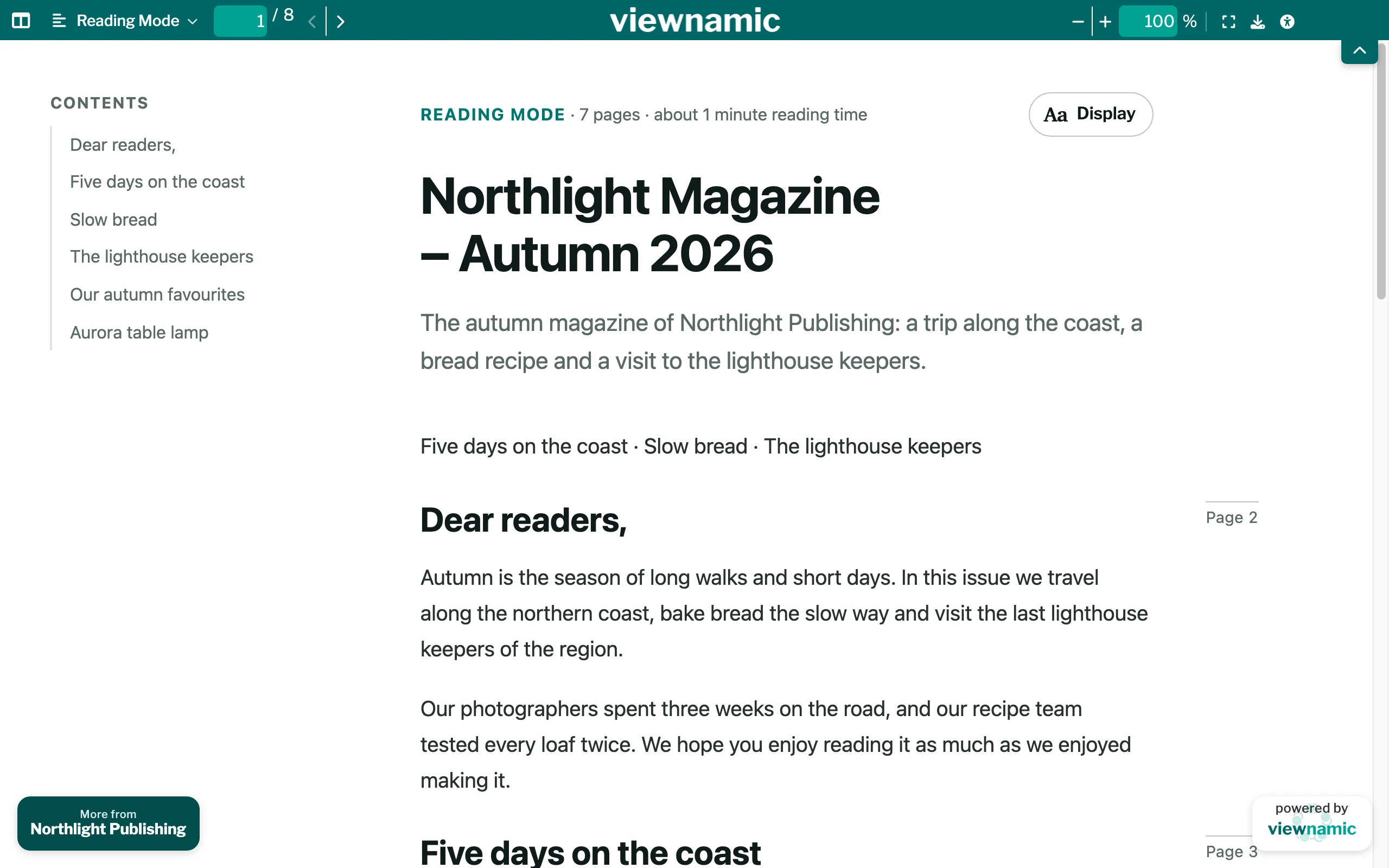
The Reading Mode is a text version of your publication that readers open in the same viewer. Viewnamic creates it automatically from your PDF – with headings, paragraphs, lists, tables and links – and the PDF itself stays unchanged. Every plan includes it.
How the text version is created
- Viewnamic reads the text of your PDF while you use the Workspace, shortly after the upload. You don’t have to start anything.
- Tagged PDFs, which store headings and reading order in the file, give the best result. For other PDFs Viewnamic analyses the layout: columns, headings and lists. Repeated headers, footers and page numbers are hidden.
- Videos, audio, 3D models, click dummies and slideshows appear in the text with the descriptions you entered as accessibility information and a link to their page in the PDF. Link areas become normal links.
- A PDF without selectable text, such as a scan, gets no Reading Mode.
- After a new PDF version, the text version is created again. Your corrections are kept; any that no longer fit the new text are marked for you to check.
Check and correct the text version
- In the Workspace, open the project’s menu (⋯) and choose Accessibility information.
- The section Reading Mode shows the status and the detected structure. Regenerate creates the text version again (Create now if there is none yet).
- Click Edit text version. The outline of all text blocks opens on the left.
- Choose a block and correct it on the right: Type (for example Heading or Paragraph), Level, Text, Alternative text of a figure, Hide in the Reading Mode, or Move up and Move down.
- Look at the Checks at the top. They list a missing title or language, missing headings or skipped heading levels, figures without alternative text and corrections to check after an update. Click an entry to go to its block.
- Click Save corrections or press Ctrl/Cmd + S. The Reading Mode shows them right away.
At the top of the editor you also set the Document title and the Language, as a code such as en, de or de-DE. Viewnamic takes the language from the PDF or recognises it from the text. The text itself is not translated.
The Document summary from the accessibility information appears at the top of the Reading Mode, and an Accessible alternative URL is linked at its end.
What readers get
- They open it with the view button (Reading Mode) or with Alt/Option + R.
- A table of contents, the reading time and page markers that lead back to the same page in the PDF. Show the original PDF at the end returns to the PDF.
- Display sets the text size, line width, font and background (light, sepia or dark); the zoom buttons change the text size too. The browser remembers the text size, line width, font and background.
Why it helps accessibility and search
A PDF is made for print: screen readers often read it in the wrong order, and on a phone the text is tiny. The Reading Mode offers real headings, lists and alternative texts, and the text adapts to every screen. A skip link at the very start of the page takes screen reader users there.
For public and link-only publications, the text is part of the publication’s page, so search engines read your content, not just a title. Under Search engines in the same dialog, you decide whether a publication may be indexed and can add a title and description for search results. Secure publications are never shown to search engines. More in Get your PDF found in search engines.
Good to know
- To link straight to the text version, add #reading to the end of the publication’s link (Link to a specific page).
- For protected publications, the text appears only after the reader has unlocked the PDF.
- With “SEO for your website” (Premium), your embed code can also place the text version, folded away, below the PDF on your website: SEO for your website.
Questions
Can I switch off the Reading Mode for a publication?
There is no switch for that. You can hide single blocks with Edit text version and keep the publication out of search results by unticking “Allow search engines to index this publication”.
Who can edit the text version?
Everyone who may edit the project in your Workspace. Readers only see the result.