
Reading a publication in the Viewnamic viewer
Publications open right in your web browser – no app, no account. This guide shows how to turn pages, zoom, use fullscreen and download, and how to play videos and audio.
Publications open in your web browser – on a computer, tablet or phone, without an app or an account. The top bar holds everything you need: page navigation, the view, zoom, fullscreen and, if the publisher offers it, the download.
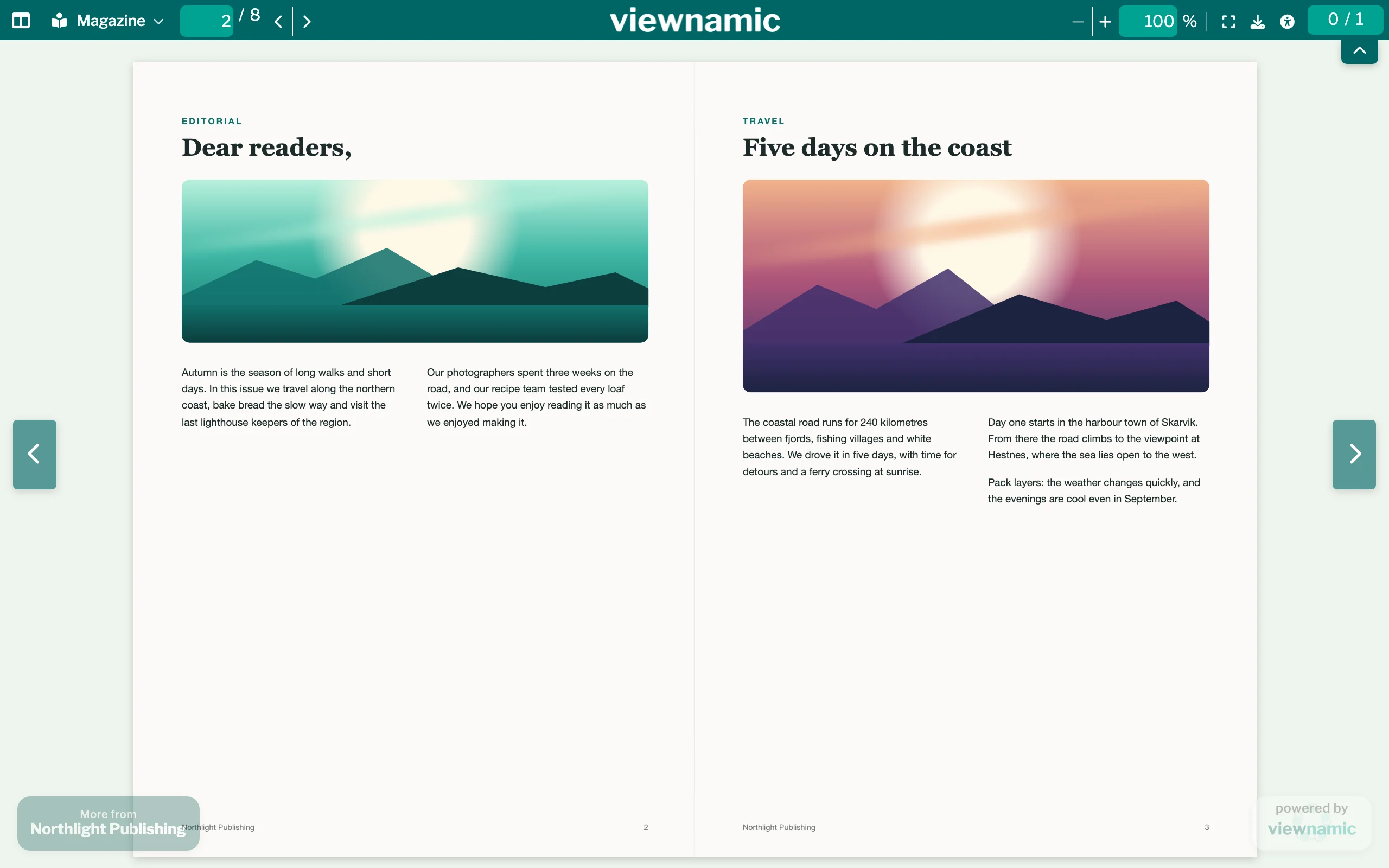
Move through the pages
- Use the arrows in the top bar, or type a page number into the page field and press Enter.
- In Scroll view, simply scroll. In Magazine view, use the arrows at the left and right edge; in many magazines you can also drag a page by its outer edge to turn it.
- The first button in the top bar shows the Page thumbnails: small pictures of all pages. Click one to go there. Pages with videos or other interactive content are highlighted.
- The view button switches between the views the publication offers, such as Scroll view, Grid view (all pages at a glance), Presentation, Magazine and the Reading Mode: Views in the viewer.
On small screens, these buttons are in the menu at the left of the top bar. The small handle just below the top bar, on the right, hides the bar; click it again to bring the bar back.
Zoom
- Use − and + in the top bar or type a percentage.
- Pinch with two fingers on a touch screen or trackpad, or turn the mouse wheel while holding Ctrl (Mac: Cmd) or Alt/Option. The spot under your fingers or pointer stays in place.
- In Magazine view, double-click or double-tap to zoom in at that spot, and again to fit the page. Drag an enlarged page to move it.
Fullscreen
Click the fullscreen button next to the zoom or press Alt/Option + F. Esc ends it.
- On iPhone, where Safari offers no fullscreen for web pages, the viewer fills the browser window instead.
- In a publication embedded on a website, fullscreen covers your whole screen. If the website does not allow that, the publication opens in a new tab at the same page.
Videos, audio and other content
- Videos start with the play button on the video. Where the publisher allows it, the button Detach into a floating window keeps the video playing in a small window while you read on. Drag the window anywhere, resize it at a corner, and use Back to its page or Close the floating window when you are done. Switching the view closes it; the video then waits on its page. If your device is set to reduce motion, no video starts by itself: start it with its play button.
- Audio plays with a click on the round speaker button, and a second click pauses it. While it plays, point at it or tap it to see the time line and – except on iPhone and iPad – the volume. Some audio keeps playing on other pages as a small audio badge in the bottom right corner.
- 3D models, slideshows and click dummies open with a click on their area. A 3D model turns with the mouse, a finger or the arrow keys.
- The icon at the top right shows how many interactive elements the current pages contain. Click it for a list that takes you to each one.
Download
If the publisher offers the download, a download button appears next to the fullscreen button (on small screens as Download in the menu). The PDF is saved to your device. Publications sent with a personal secure link cannot be downloaded.
Keyboard shortcuts
Hold Alt (Mac: Option) and press:
- Page Down / Page Up – next / previous page
- ↑ / ↓ – zoom in / out
- S – Scroll view, G – Grid view, P – Presentation, M – Magazine
- T – page thumbnails, R – Reading Mode
- F – fullscreen, D – download
- C – list of interactive content, A – accessibility information, H – hide or show the top bar
The shortcuts work in every window size, also when the views and buttons are in the menu. In Presentation, the arrow keys and Page Up / Page Down work without Alt (Present a PDF). Esc closes menus.
Privacy policy and imprint
A small line in the bottom right corner links to Viewnamic’s privacy policy and imprint. There you can read which data the viewer processes.
Good to know
- To point someone to a certain page, add #page= and the page number to the link, for example #page=12: Link to a specific page.
- If you prefer plain text, open the Reading Mode: Reading Mode.
Questions
Why am I asked for a code to open a document?
The publisher sent it with a personal secure link that is confirmed by email. Click “Send verification code”, enter the code from the email and click “Verify code”.
A part of the publication does not load. What can I do?
Reload the page in your browser. The viewer then fetches the missing parts again.