
Views in the viewer: Scroll, Grid, Presentation, Magazine and Reading Mode
The viewer offers up to five views: Scroll, Grid, Presentation, Magazine and the Reading Mode. Readers switch at any time; you choose whether a publication opens in Scroll or Magazine view.
Every publication opens in the Viewnamic viewer, and readers can switch between up to five views: Scroll view, Grid view, Presentation, Magazine and the Reading Mode. You decide whether a publication opens in Scroll or Magazine view – readers change the view whenever they like.
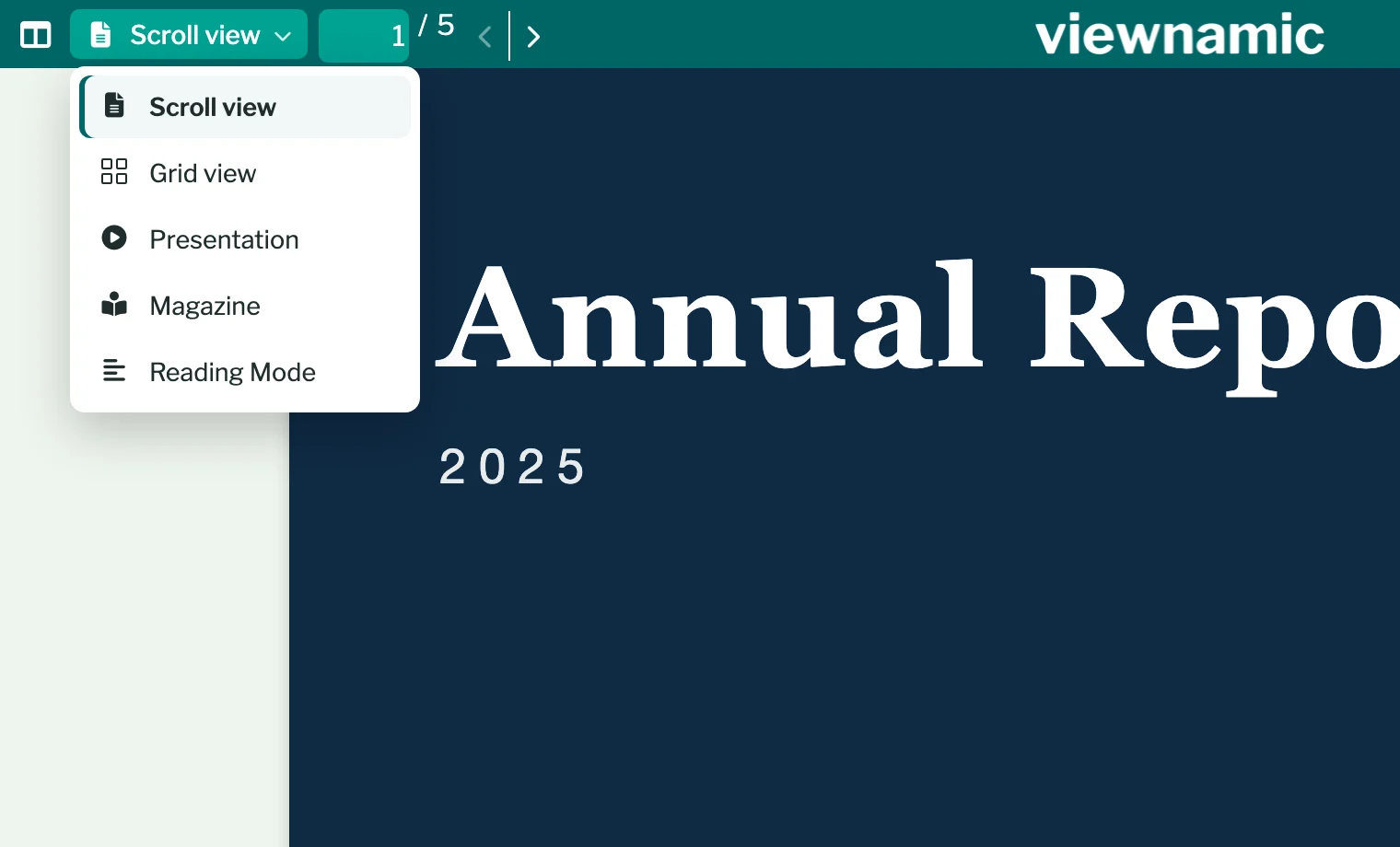
The five views
- Scroll view shows the pages one below the other, like a web page. It suits reports, papers and phones.
- Grid view shows the pages as small tiles for a quick overview. A click on a page opens it in the publication’s start view.
- Presentation shows one page at a time in fullscreen – for meetings and talks. The arrow keys move through the pages; on a page with a video or 3D model, the right arrow key starts it first. Move the pointer to the top edge to see the top bar. Esc ends the presentation and returns to Scroll view. More in Present a PDF.
- Magazine shows double-page spreads like a printed magazine, with the cover on its own. More in Magazine view with page-flip effect.
- Reading Mode shows the publication as adjustable text. More in Reading Mode.
Switch the view
- Click the view button in the top bar. It shows the name of the current view, for example Scroll view.
- Choose another view from the list.
On tablets, phones and in narrow windows, the views are in the menu at the left of the top bar. With the keyboard, hold Alt (Mac: Option) and press S (Scroll view), G (Grid view), P (Presentation), M (Magazine) or R (Reading Mode). The current page stays when you switch.
Choose the start view
The start view is the view a publication opens in. It can be Scroll or Magazine; readers open the other views themselves.
- For new uploads of a profile: in the Workspace, choose Scroll or Magazine under Default viewer mode at the top. It applies to the PDFs you upload from then on.
- For a dynamic PDF (with videos or other content): open the project’s menu (⋯), choose Edit Project and pick Scroll or Magazine in the selection at the top left of the editor.
- For a static PDF: click the view icon on its project tile. The tooltip names the current mode, for example “Default mode: Scroll view”, and each click switches between Scroll view and Magazine view.
Scroll view, Grid view, Presentation and the Reading Mode are part of every plan. Magazine as the start view, with the page-flip effect, is included in Publisher, Publisher Plus, Premium and Tailored. In other plans the Workspace shows Magazine · unavailable, and the editor greys out Magazine with Plan upgrade required – a publication that already opens in Magazine keeps it.
Why a view is missing or does not open
- Presentation is not offered for publications that open in Magazine. They are laid out in double pages, while Presentation always shows single pages.
- Reading Mode appears once the text version of the PDF exists. A PDF without selectable text, such as a scan, has none.
- Presentation needs the browser’s fullscreen. Where there is none – in Safari on iPhone, for example, or in an embed whose website does not allow fullscreen – the viewer shows Scroll view instead.
Good to know
- If a publication opens in Magazine, Scroll view and Grid view show its double pages too.
- Embeds on your website offer the same views. For Magazine publications, the embed window also lets you choose between spreads and single pages: Embed a PDF on your website.
Questions
Does changing the default viewer mode change my existing publications?
No. The Default viewer mode only applies to PDFs you upload afterwards. Change an existing publication in the editor or with the view icon on its project tile.
Can a publication open in Grid view or Presentation?
No. A publication opens in Scroll or Magazine view. Readers switch to Grid view or Presentation themselves.