Mobile-Friendly PDF: How to Make PDFs Easy to Read on Phones
Most PDFs are made for paper, not for phones. Seven tips for PDFs that are easy to read on small screens – and how the Reading Mode turns any PDF into text that fits the screen.

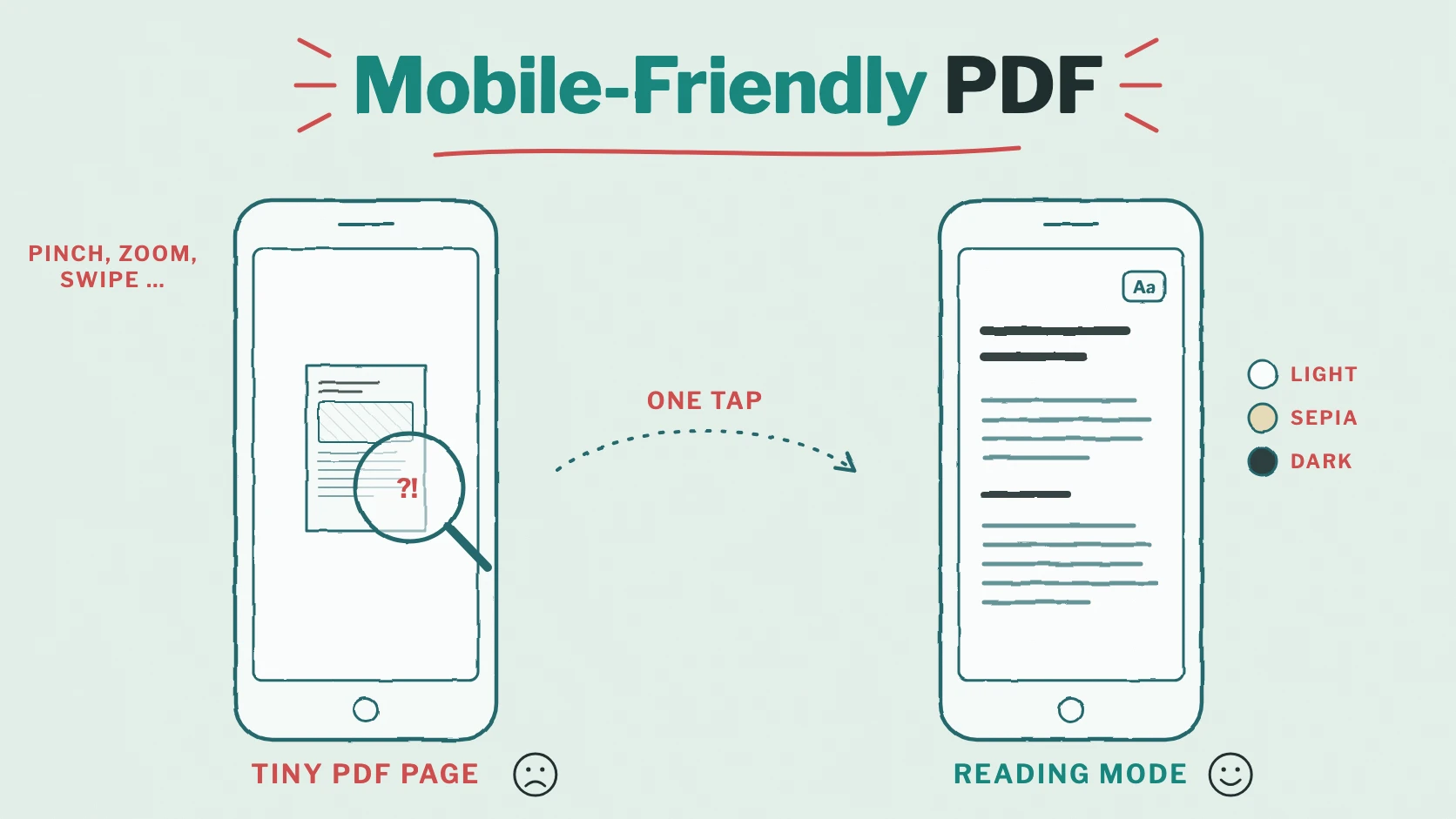
Your brochure looks perfect on the big screen in the office. Then a customer opens it on the train, on a six-inch phone: a tiny A4 page, text too small to read, zooming in, swiping sideways, zooming out again. Many readers give up after the second page – and your message never arrives.
The good news: you don’t have to redesign your documents for phones. In this article, you’ll find seven tips that make any PDF easier to read on small screens, and how the Viewnamic viewer and its Reading Mode turn the PDF you already have into a mobile-friendly PDF.
Why PDFs are hard to read on phones
- Fixed pages: a PDF keeps its page size. On a phone, a whole A4 page shrinks to a fraction of its width.
- Small text and several columns: what is pleasant in print becomes a zoom-and-swipe exercise on a small screen.
- Large files: high-resolution images make a PDF heavy – a problem on a mobile connection.
- Another app: on many phones, a PDF opens as a download or in a separate app instead of the browser, and readers lose their way back.
- Hard for screen readers: without tags, a screen reader often reads a PDF in the wrong order.
Seven tips for PDFs that work on phones
- Choose generous font sizes: body text of 11 or 12 points stays readable when the page shrinks; 8 or 9 points don’t.
- Prefer one or two columns to three: readers then zoom in once and scroll down instead of swiping in every direction.
- Write short paragraphs with clear headings, so that readers find their way even on a small screen.
- Compress your images for the screen version. Print resolution isn’t needed on a phone.
- Use real text, not scans: only selectable text can be enlarged, searched, read aloud and turned into a text version.
- Export a tagged PDF: InDesign, Word and many other programs store headings and the reading order in the file if you tick the option.
- Put the most important things first: the cover and the first pages decide whether someone reads on.
Send a link instead of a file
Even a well-designed PDF suffers when it arrives as an attachment. With Viewnamic, you share a link, and the PDF opens right in the browser – in the Viewnamic viewer, without an app or a download:
- The first page appears at once, the others load while the reader scrolls.
- The Scroll view shows the pages one below the other, like a web page – made for phones.
- Zoom with two fingers; the spot under the fingers stays in place.
- Page thumbnails lead straight to any page.
- Fullscreen: on iPhones, where Safari has no fullscreen for web pages, the viewer fills the browser window instead.
The Reading Mode: your PDF as text that fits the screen
The biggest step for mobile readers is the Reading Mode. Viewnamic creates it automatically from your PDF: a text version with real headings, paragraphs, lists, tables and links that adapts to every screen – no zooming, no swiping.
- Open with one tap: readers choose “Reading Mode” in the list of views.
- Easy to find their way: a table of contents, the reading time and page markers that lead back to the same page in the PDF.
- Adjustable: text size, line width, font and background – light, sepia or dark. The browser remembers the choice.
- Linkable: add #reading to the link of your publication, and it opens right in the Reading Mode – handy for newsletters read on phones.
Tagged PDFs give the best result; for other PDFs, Viewnamic analyses the layout – columns, headings, lists. Scans without selectable text get no Reading Mode. You can check and correct the text version in the Workspace at any time.
A bonus for accessibility and search
What helps on phones helps others too. Screen readers read the Reading Mode in the right order, with headings and alternative texts. And for public and link-only publications, the text is part of the publication’s page, so search engines read your content, not just a title – “SEO for your document” is part of every plan (Get your PDF found in search engines).
And magazines?
Magazines and catalogues that open in the Magazine view show one page at a time on a phone held upright, because two pages would be too small. Turned sideways, or on a tablet, the double pages come back. More in our guide to the flipbook catalog and e-paper.
Conclusion: mobile-friendly without a second version
You don’t need a separate phone version of every document. Good typography helps, a link instead of an attachment helps more – and with the Viewnamic viewer and the Reading Mode, the PDF you already have becomes easy to read on any phone.
See for yourself: start with the Free plan, upload a PDF, open its link on your phone and switch to the Reading Mode. Or try Viewnamic without an account first.
Publish your PDFs with Viewnamic
Host, share and enhance your documents – with the Free plan, online for 30 days.