Embed a PDF on Your Website: Why Viewnamic Does It Better
The usual ways to embed a PDF look different in every browser and often fail on phones. What a real PDF viewer does better – and how to put your PDF on your website in five minutes, in WordPress or any other site.

A brochure, a menu, a price list, a catalogue: many websites have PDFs that matter. Most of them simply link to the file – and send their visitors away from the page, into a download or another app. If you embed the PDF on your website instead, visitors read it right where you want them: next to your products, your contact form and your next call to action.
The question is how. In this article, you’ll see why the usual ways to embed a PDF often disappoint, what a real PDF viewer does better – and how to embed your PDF with Viewnamic in five minutes, in WordPress, Wix, Squarespace or any other website.
The usual ways – and where they fall short
- A link to the PDF file: quick, but visitors leave your page. On phones, the file often ends up in the downloads, and you never learn whether anyone opened it.
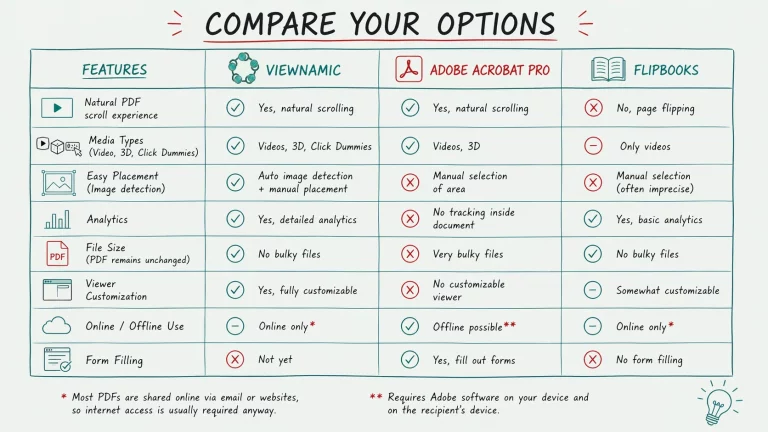
- An iframe or embed tag: the browser shows the PDF with its own PDF display – and that looks different in every browser. On many phones, an embedded PDF shows only its first page or a button to open it.
- A preview from a cloud drive: the file has to be shared publicly, the preview shows the provider’s interface, and your visitors’ browsers connect to the provider’s servers – for visitors from the EU usually a case for your consent banner.
- A plugin: most plugins show the pages and nothing more – no videos, no statistics – and they are one more piece of software to keep up to date.
All of them treat the PDF as a file that somehow has to appear on the page. A good embed treats it as content your visitors should enjoy reading.
What Viewnamic does better
1. It looks the same on every device
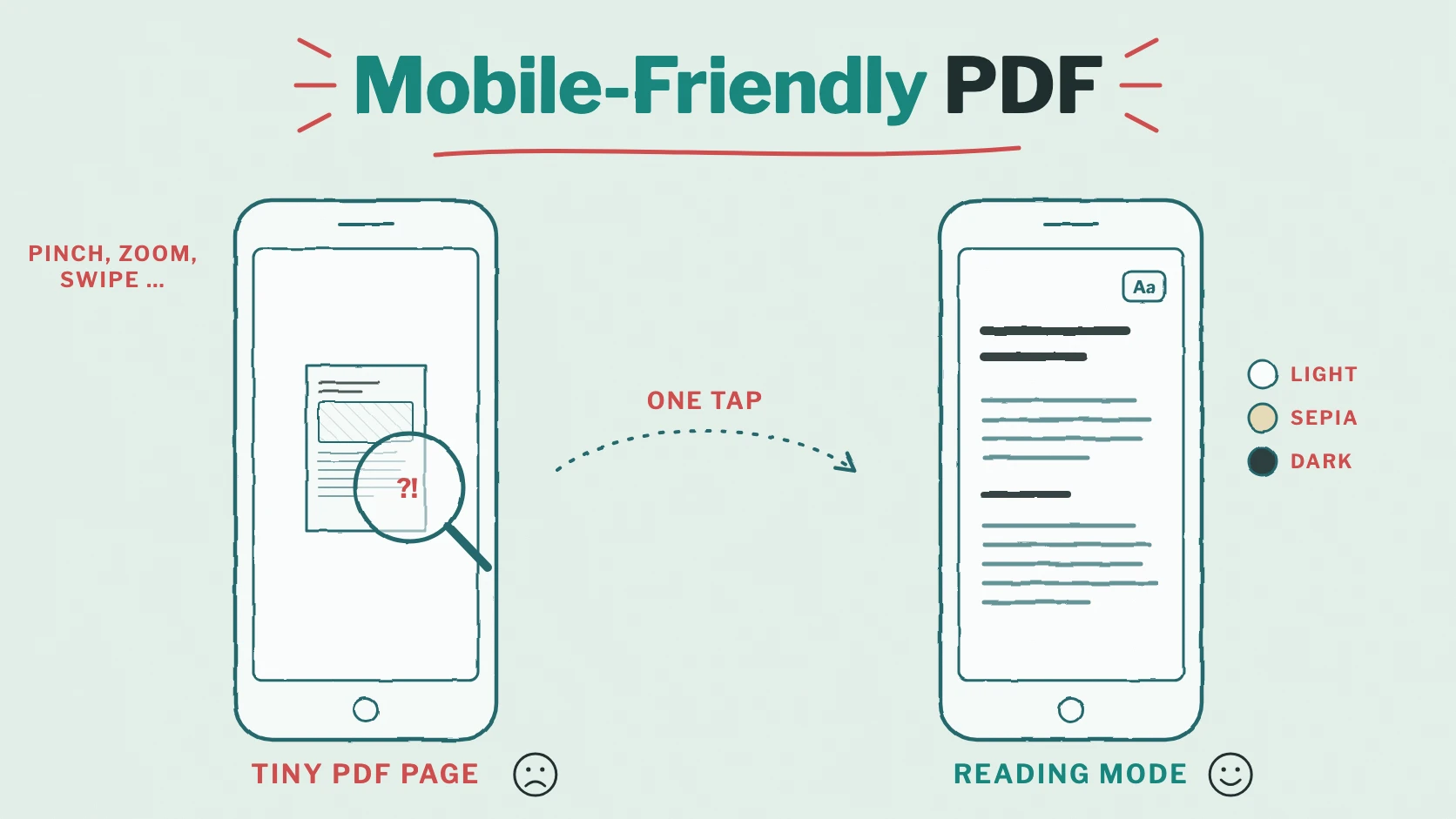
With Viewnamic, your visitors don’t get their browser’s PDF display but the Viewnamic viewer – on a computer, a tablet and a phone alike. They scroll through the pages, zoom with two fingers, switch to fullscreen or open the Reading Mode, the text version that adapts to any screen.
2. It stays fast, even with large PDFs
The first page appears at once, the rest loads while your visitors read. Nobody has to download a 40-megabyte catalogue before seeing its cover.
3. It fits your layout
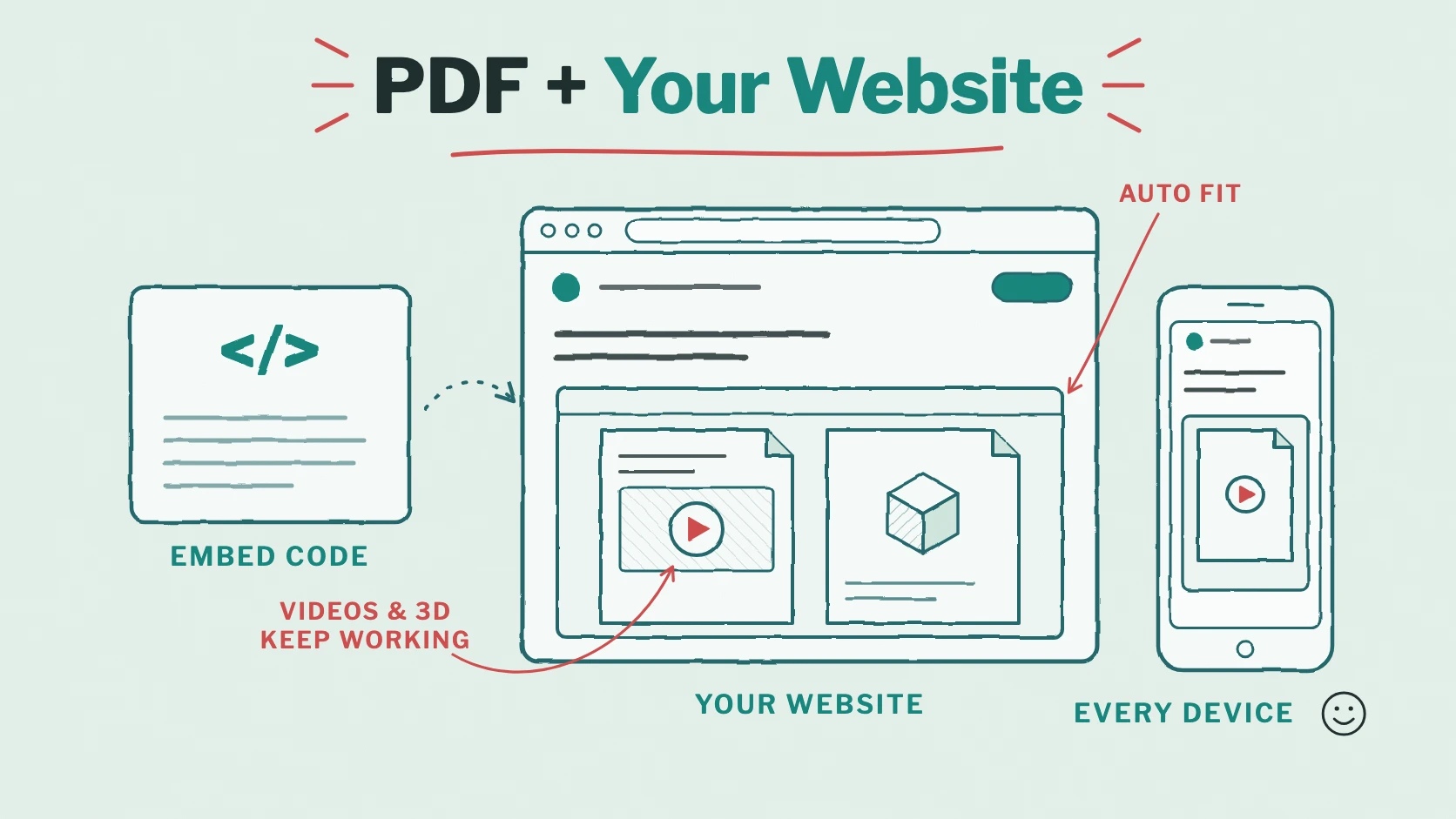
With Auto fit, the embed takes the width of your page’s column, and its height follows the format of your PDF – there is nothing else to set. If the PDF should fill a specific element of your page, choose Fill parent. A live preview in the embed window shows the result at phone, tablet and desktop width before you copy the code.
4. Videos, 3D models and links keep working
Interactive content plays right inside the embed: product videos, audio, 3D models, image galleries and click dummies. Links in your PDF stay clickable, and fullscreen fills the whole screen, not just the frame on your page.
5. One code, always the latest version
Correct a typo or update your prices: upload a new PDF version, and every embed shows it – without touching your website. For recurring editions such as magazines or menus, a reusable embed follows the link of your publication to the newest edition.
6. Your content, without ads, hosted in Germany
No third-party ads and no suggestions of other publishers’ documents. Viewnamic is hosted in Germany and works without tracking cookies – a good fit for websites that take privacy seriously.
7. You see how your PDF is read
Visitors who read the PDF on your website are counted in the statistics like every other reader: visits, reading time per page, downloads and the use of videos and links (Premium and Tailored plans).
8. Its text counts for your website
Normally, search engines credit the text of an embedded PDF to the host of the viewer. With SEO for your website (Premium), the embed code also puts the PDF’s text into your own page, behind a small “Text version” line below the PDF – so the content counts for your page.
9. Your whole public page, too
Do you publish several PDFs – catalogues, price lists, every issue of your magazine? Instead of embedding them one by one, embed your whole public page: the list of your publications appears on your website, and a click opens a publication in a new tab or right over your page. You choose whether it shows all publications, only the newest or a single collection (Premium), with or without the header of your public page. New publications appear in it by themselves. In the Workspace, you find it under Public Overview Design → Embed page (Publisher, Publisher Plus, Premium and the tailored plans); Embed your public page explains every option.
How to embed a PDF on your website in five steps
- Upload your PDF to the Viewnamic Workspace and give it the access mode “Link only” or “Public page”.
- Open the embed window: in the project’s menu (⋯), choose “Embed”.
- Choose the size: Auto fit (recommended) or Fill parent, and check the live preview at phone, tablet and desktop width.
- Copy the embed code.
- Paste it into your page: in WordPress into a “Custom HTML” block, in Wix into an embed element for HTML code, in Squarespace into a code block.
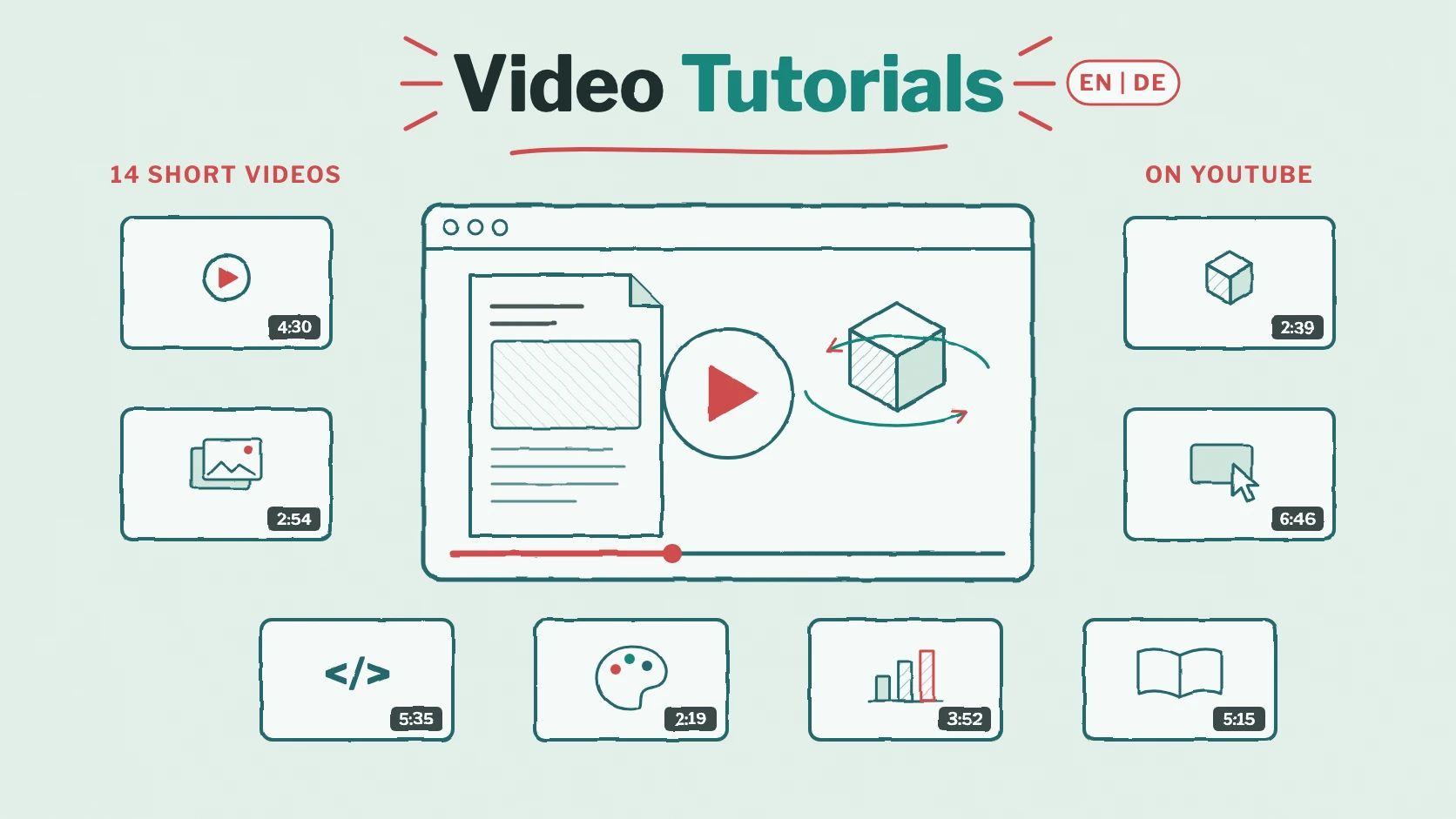
Every option is explained in our help center: Embed a PDF on your website, with a short video tutorial, and Embed a PDF in WordPress, Wix, Squarespace and other website builders.
Frequently asked questions
Can I embed a PDF in WordPress without a plugin?
Yes. Paste the Viewnamic embed code into a Custom HTML block or the HTML widget of your page builder. No plugin is needed.
Does the embedded PDF work on phones?
Yes. The viewer adapts to the screen. Magazines show double pages where there is room and single pages on a phone held upright.
Can I embed a confidential PDF?
Publications with the access mode “Link only” or “Public page” can be embedded. Confidential documents are better shared with personal secure links.
Which plans include website embedding?
High Five, Publisher, Publisher Plus, Premium and the tailored plans. All details are on the pricing page.
Conclusion: a PDF that belongs to your page
A link sends your visitors away, and a browser frame looks different everywhere. Embedded with Viewnamic, your PDF becomes part of your website: fast, the same on every device, with working videos and links, always up to date and measurable.
Try it with your own PDF: upload it without an account, and when you’re ready, choose a plan with website embedding on the pricing page.
Publish your PDFs with Viewnamic
Host, share and enhance your documents – with the Free plan, online for 30 days.