
Brand the viewer with your logo and colours
In the Workspace you give the viewer of a profile your logo, your colours and a link to your website. Readers see this design in every publication of the profile – also in embeds.
You can give the viewer your own design: your logo in the top bar, your colours and a link to your website. The design belongs to a profile and applies to all its publications – whether readers open a link, an embed on a website or your public page.
Your own logo and colours (“Custom viewer (logo & colours)”) are included in Premium and Tailored. In other plans the viewer uses the Viewnamic design, and the section offers Upgrade subscription.
Step by step
- Open the Workspace. If you have several profiles, switch to the one you want to design.
- Scroll down to PDF Viewer Design.
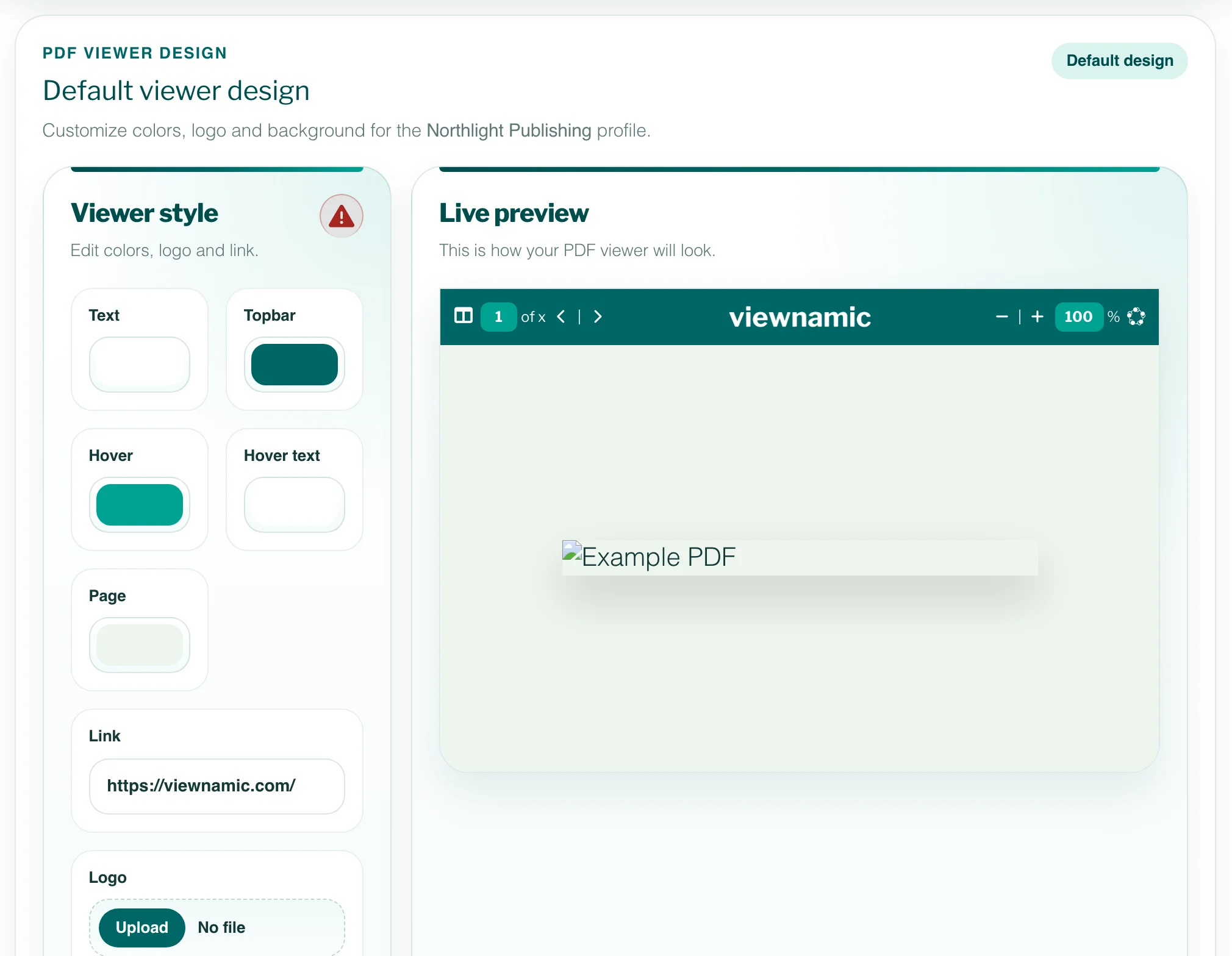
- Under Viewer style, choose the colours: Text (icons and text in the top bar), Topbar (its background), Hover and Hover text (a button under the pointer and the page and zoom fields) and Page (the background around the pages).
- Enter your website under Link. The logo in the viewer opens it in a new tab.
- Under Logo, click Upload and choose a PNG or JPG file of up to 2 MB that is at most seven times as wide as it is high.
- Check the result in the Live preview.
- Click Save. The button appears as soon as you have changed something.
The question-mark button next to Viewer style (Check color contrast) shows whether your text and background colours are easy to read.
Back to the Viewnamic design
Click Reset and confirm. The profile’s viewer then shows the Viewnamic design again.
Reset deletes the colours, the link and the uploaded logo of this profile. To use them again, you have to enter and upload them anew.
The badges in the corners
- powered by Viewnamic – a small badge in the bottom right corner that links to viewnamic.com. Every standard plan shows it; for a tailored plan this is agreed individually.
- More from … – a small badge in the bottom left corner with the logo of your public page (or your profile name) in the colours of its header. It opens your public page in a new tab, so readers find your other publications. It appears in every publication of the profile – link-only, secure and embedded ones included – when your plan includes the public page (Publisher, Publisher Plus, Premium, Tailored) and the page is switched on (Public page: on under Public Overview Design).
Both badges are hidden in Presentation and fade when they lie over a page. The “More from” badge takes its logo and colours from your public page, not from the viewer design: Design your public page.
Good to know
- Each profile has its own viewer design, so several profiles can present different brands: Profiles.
- Without your own logo, the top bar keeps the Viewnamic logo. Without a link, the logo leads to viewnamic.com.
- On narrow screens the logo gets smaller; it is only left out when there is no room at all.
- If your plan no longer includes the custom viewer, readers see the Viewnamic design. Your settings stay saved.
- Team members see this section only if their role lets them manage the viewer design: Team members.
- Your design does not change the small line with Viewnamic’s privacy policy and imprint in the bottom right corner.
Questions
Can I use an SVG file as the viewer logo?
No. The viewer logo has to be a PNG or JPG file of up to 2 MB. The logo of your public page can also be an SVG.
Do I need a new embed code after changing the design?
No. Embeds show the publication in the same viewer, so they always use the current design of the profile.