
The Workspace at a glance
The Workspace is where you upload PDFs and manage your projects: tiles with link and access, folders, filters, actions for many projects at once, your dynamic content and the design of viewer and public page.
The Workspace is your work area in Viewnamic: you upload PDFs there, organise them in folders, decide who can open them and manage your dynamic content and designs. Open it with Workspace in the header or directly at /personal-user-area/.
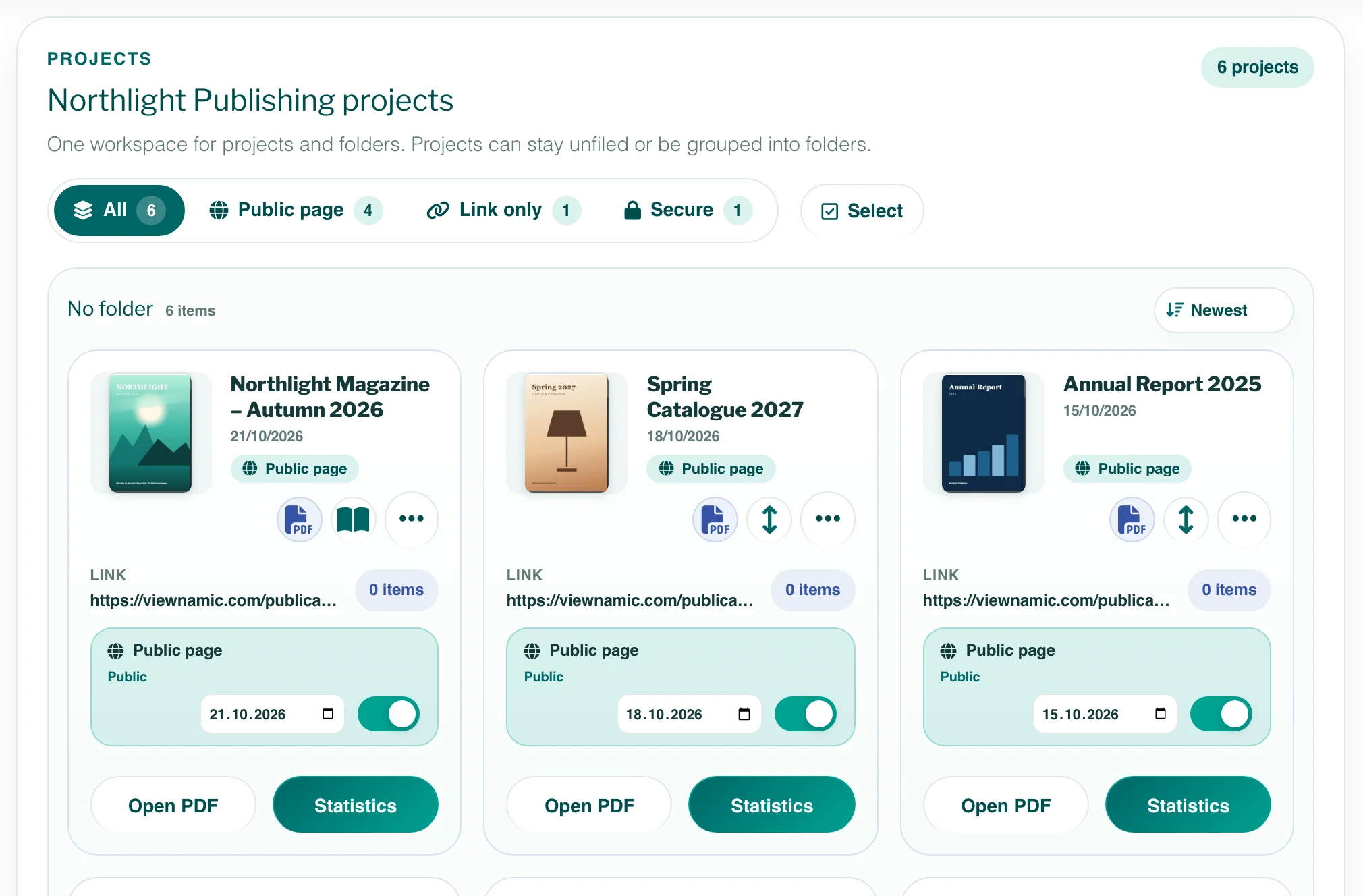
What you find in the Workspace
- At the top: the active profile with its number of projects and the address of its public page (/public-overview/profile/; without a public page, the start of its publication links), the Default viewer mode and – if your account has several profiles – the switch between them (profiles).
- Add PDF: the upload areas Dynamic PDF and Static PDF (upload a PDF).
- Projects: your PDFs as tiles, under No folder or in folders.
- Your dynamic content: videos, audio files, 3D models, click dummies and slideshow images of the profile.
- PDF Viewer Design and Public Overview Design: the look of your viewer and of your public page.
- Account & usage for the account owner and, in plans with team members, Team & permissions.
Project tiles
Each tile shows the cover, the name and the upload date, whether it is a Static PDF or a Dynamic PDF, its default view and its access: Public page, Link only or Secure. On a static PDF, the view icon switches the default view between scroll and magazine (magazine in plans with the page-flip effect). Below are the link, the number of dynamic items and – with a public page in your plan that is switched on – the switch and date for showing it there. Open PDF opens the publication in the viewer, Edit opens a dynamic PDF in the editor; a static PDF has Statistics there instead, in plans with statistics.
The project menu
The ⋯ button of a tile offers, depending on your plan, your role and the project: Move to folder, Rename, Customize Link, Edit Project, Accessibility information, Statistics, Embed, Access & secure sharing, Download PDF and Delete. For a PDF that still has an old password of its own, the account owner also finds Remove password there (see Access modes). What the accessibility fields do: Accessibility information.
Folders, filters and sorting
- Create folder adds a folder. Its ⋯ menu has Rename and Delete; when you delete a folder, its projects move to No folder.
- The filters All, Public page, Link only and Secure show only projects with that access. If you use collections, a second filter shows the projects of one collection.
- The sort menu next to each list sorts by Newest, Oldest, A–Z or Z–A. Long lists are split into pages.
Work on many projects at once
- Click Select next to the filters. Every tile now has a checkbox, and a click on a tile selects it.
- Select projects – also on other pages and in folders – or use Select all shown or Select all (every project that matches the filters, on all pages and in every folder).
- In the bar at the bottom, choose an action: Folder, Collection, Access, Publication date, Names & links or Delete. The bar only offers what your plan and role allow.
- Confirm in the dialog. The projects are changed one after the other, and each one shows its result; Stop ends after the current project.
- Click Done or press Esc to leave the selection mode.
Deleting several projects only starts after you tick Yes, delete these … projects. Their PDFs, dynamic content, links and statistics are removed – this cannot be undone.
Dynamic content
Under Your dynamic content you upload videos, audio files, 3D models and slideshow images or create click dummies, and reuse them in any project of the profile. Each entry shows which projects use it. The download button next to an entry saves the file as Viewnamic stores it, and a click dummy’s ⋯ menu has Download screens; entries no project uses can be deleted. Downloading and deleting also work while your account is read-only or paused.
Account and team
- The account owner sees Account & usage with the plan, the storage and the number of projects, and the button Subscription & billing – see manage your subscription.
- Team members see only the profiles and actions their role allows – see team members.
Questions
Why is an entry missing from the project menu?
The menu only shows what your plan, your role and the project allow. For example, “Statistics” appears only in plans with statistics, and “Embed” only in plans with website embedding and not for Secure projects (for a PDF with an old password, the menu says why there is no embed; only the account owner sees “Remove password”), and team members with the Editor role see neither “Delete” nor “Access & secure sharing”.