
Embed a PDF on your website
Open the project’s embed window in the Workspace, choose the size and options, check the live preview and copy the embed code into your page. The PDF stays hosted by Viewnamic.
You can show a publication directly on your own website. In the Workspace, open the project’s embed window, choose a few options, check the live preview and copy the embed code into your page. The PDF stays hosted by Viewnamic, and readers get the full viewer on your page.
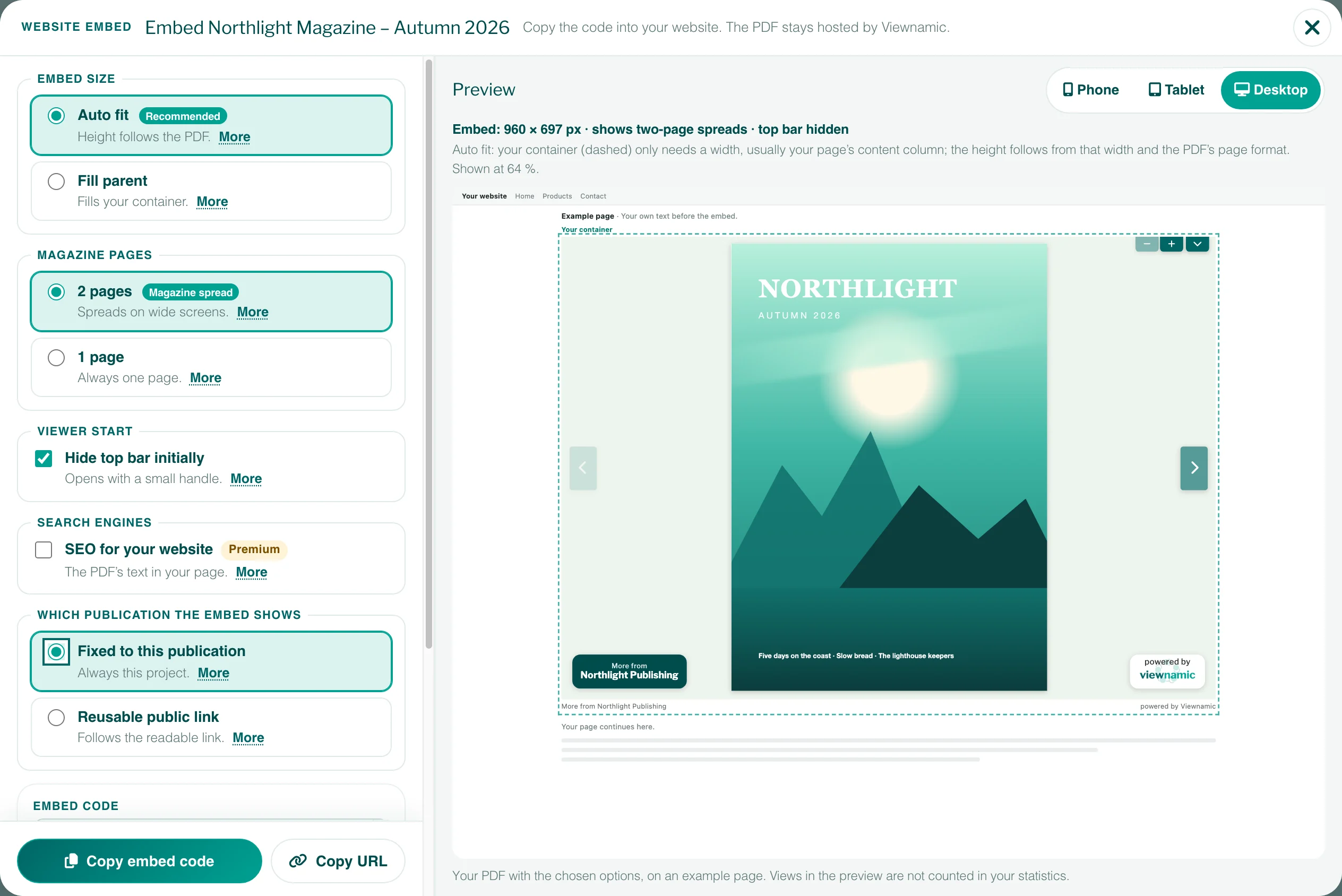
Step by step
- In the Workspace, open the project’s ⋯ menu and choose Embed.
- Under Embed size, choose Auto fit or Fill parent.
- Set the other options (see below).
- Check the result under Preview with Phone, Tablet and Desktop.
- Click Copy embed code.
- Paste the code into your page where the PDF should appear (Embed a PDF in website builders).
Auto fit or Fill parent
- Auto fit (recommended): the embed takes the width of your page’s column, and its height follows the PDF’s page format. Nothing else is needed.
- Fill parent: the embed completely fills an element of your page, which sets the width and height. This element needs a height, otherwise the PDF does not show. Under Your container, paste the code of your element or choose an example to try it in the preview. This code is only used for the preview.
Further options
- Magazine pages (only for publications that open in Magazine view): 2 pages shows two-page spreads where the embed is at least 640 pixels wide and single pages on phones. 1 page always shows one page.
- Hide top bar initially (on by default): the viewer starts with a small handle instead of the top bar, so the PDF gets the whole height. Readers open the top bar with the handle.
- SEO for your website (Premium): puts the PDF’s text into your page for search engines (SEO for your website).
- Which publication the embed shows: Fixed to this publication always shows this project. Reusable public link follows the publication’s link: when you move the link to a new edition, the embed shows the new one (Share the link to your PDF).
The preview
The preview shows your PDF with the chosen options on an example page and updates with every change. The line above it shows the size of the embed and, for magazines, whether it shows spreads or single pages. Views in the preview are not counted in your statistics.
The line below the PDF
The code adds a small line below the PDF: More from with your profile name, which links to your public page, and powered by Viewnamic. The first link appears only if your profile has a public page that is switched on. “More from” is written in the language of your Workspace at the time you copy the code.
Good to know
- Only Link only and Public page publications can be embedded. If a publication becomes Secure, its embeds stop working, and Embed disappears from its menu. A PDF with an old password cannot be embedded either: a password cannot be entered inside another website, and its menu says so. The account owner can remove the password there with Remove password; then the PDF can be embedded.
- Codes on your page do not change by themselves. After you change an option, copy the code again and replace the old one.
- You can edit the code in the Embed code field before copying it. Changing an option creates the code anew.
- Readers of the embed are counted in your statistics like other readers, if your plan includes statistics.
- If your plan no longer includes website embedding, existing embeds stop working.
Website embedding is included in High Five, Publisher, Publisher Plus, Premium and Tailored. It is not part of Single or the free trial.
Questions
Can I show several PDFs on one page?
Yes. Copy one embed code for each publication and paste them where you want them on the page.
Does the embed work on phones?
Yes. Auto fit adapts to the width of the screen, and magazines show single pages on narrow screens. Check it with the Phone width in the preview.