Add Video and Interactive Content to Your PDF Presentation
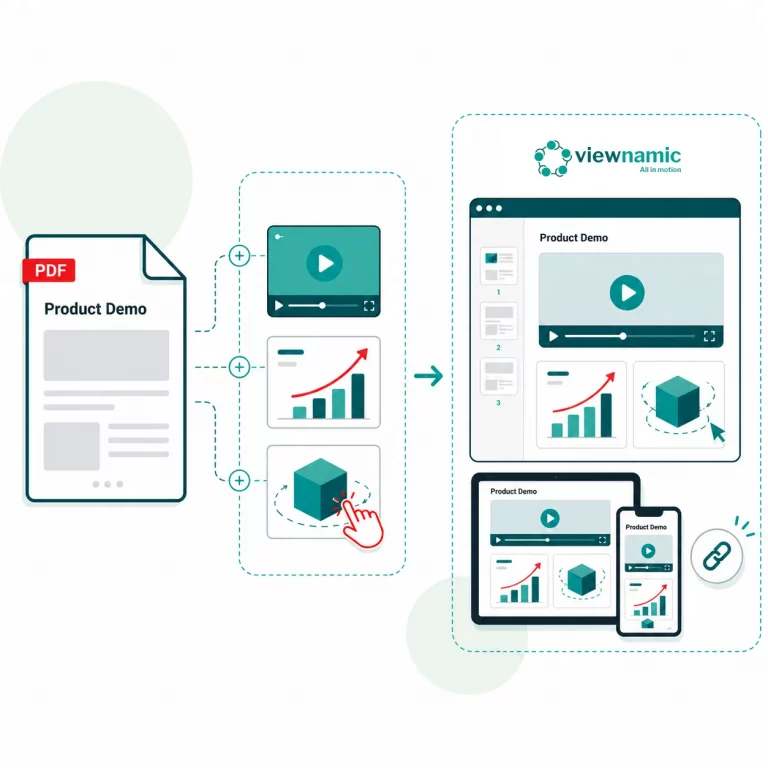
Turn your static PDF into an interactive PDF presentation. With Viewnamic, you can add videos, 3D models and interactive elements to your slides without changing the original PDF file.
See an example pitch deck presentation in the video below.
Static PDF presentations lose their impact
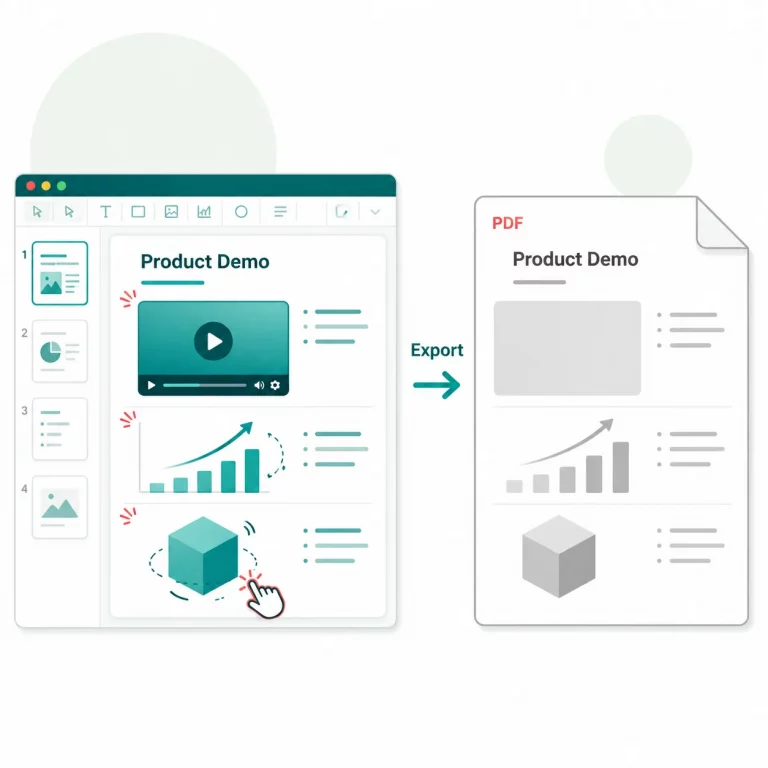
Pitch decks, sales slides and reports often lose their dynamic content once they are exported as PDFs. Videos disappear, animations stop working and interactive elements are no longer part of the experience. The result is a reliable file, but a less engaging presentation.
Create interactive PDF presentations that feel alive
Viewnamic lets you keep the reliability of a PDF while adding the dynamic media your presentation needs. Add videos, 3D models and interactive elements to your PDF slides, share them through any browser and create a presentation experience that works on every device.
How to add video to your PDF presentation
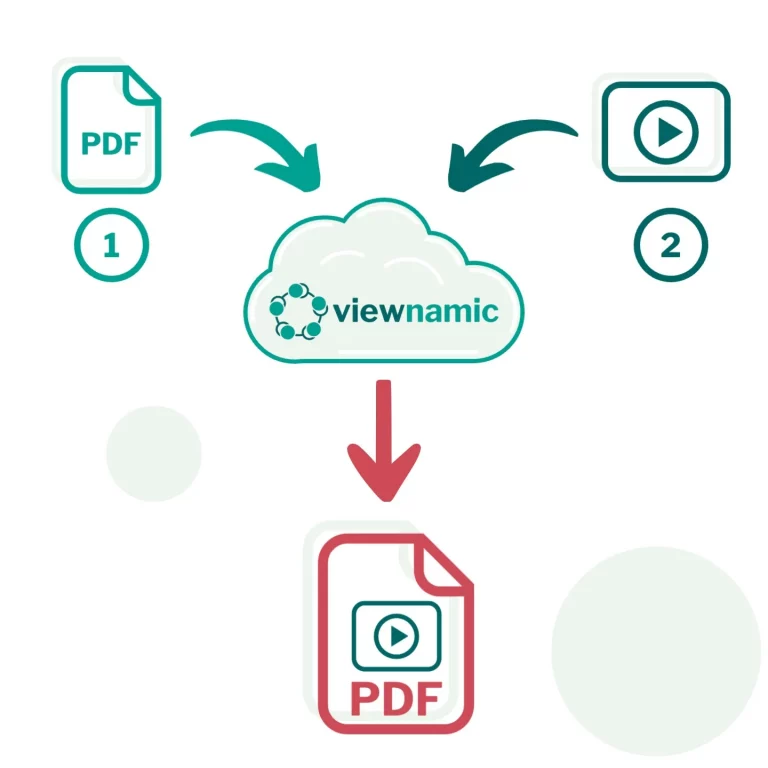
Create your slides as usual and export them as a PDF. Upload the file to Viewnamic, select the area where your video or interactive element should appear, click save and share the generated link to your dynamic PDF presentation.
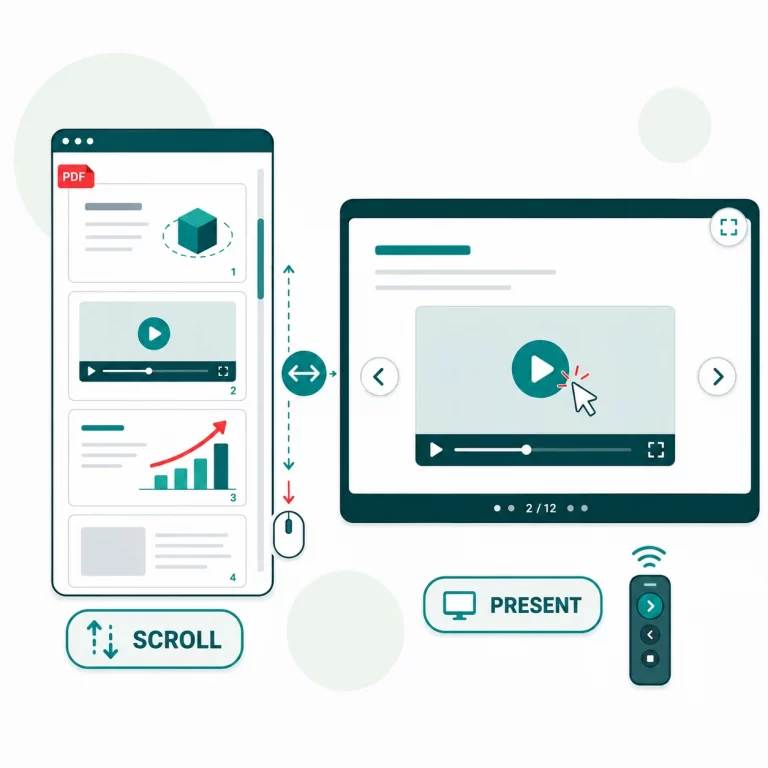
Scroll through slides or present in full screen
Your audience can scroll through the PDF presentation as usual or switch to presentation mode for a full screen slide experience. You can move through slides with a clicker and start videos directly inside the presentation.
Track how people engage with your PDF slides
When you share your interactive PDF presentation, Viewnamic helps you understand how people interact with it. See how often your slides were opened and how often embedded videos were played.
How Viewnamic differs from traditional PDF tools
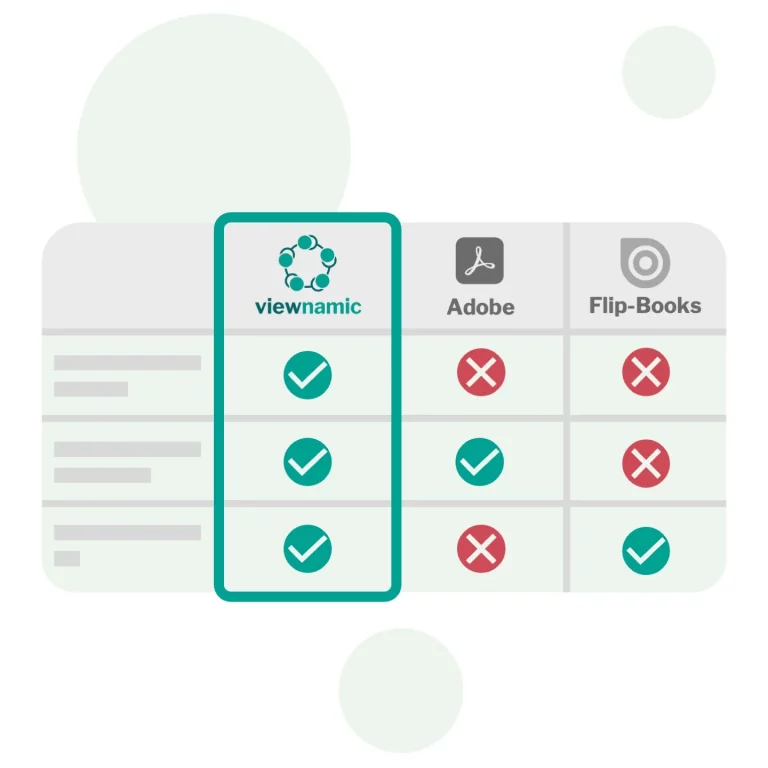
Viewnamic keeps your original PDF file size unchanged when adding videos — unlike Adobe, which embeds media directly into the file. It also offers a true PDF viewer experience, preserving layout and readability, while flipbook tools convert your document into a magazine-style animation that alters the original format.
Used by garage33 for event presentations
The startup incubator garage33 from Paderborn University uses Viewnamic for event presentations when videos need to be included in PDF slides. Startups often send their decks as PDFs because fonts, layouts and design details stay exactly as intended across devices and software versions. Viewnamic keeps that reliability while adding video and interactive media to the presentation.
Ready to upgrade your PDF presentations into dynamic & interactive slides that truly engage your audience?
FAQs
How can I embed a video (or other content) into a PDF?
To embed a video into a PDF simply upload your file. Then choose the area where the video should appear and upload your video — that’s all it takes.
If you prefer to place the video on top of an existing image, you can upload that image as well. Viewnamic will automatically detect the image inside your PDF and replace it for you.
Why doesn’t Adobe Reader show videos inside PDFs?
Adobe Reader can display videos and other rich media inside a PDF, but most people avoid this method because it only works in a few PDF viewers. If you embed a video using Adobe tools and someone opens the file in Apple Preview or another common PDF reader, the media simply won’t appear.
There’s another drawback: Adobe embeds the video directly into the PDF file, which makes the document extremely large. This breaks email delivery and makes the PDF slow and cumbersome to navigate.
With Viewnamic, your original PDF stays lightweight and unchanged. The dynamic content is delivered through our interactive viewer, so it works reliably across devices without bloating your file.
When using Viewnamic, do I need an internet connection?
Yes. Your original PDF remains unchanged, and all dynamic content is hosted by Viewnamic. You receive a shareable link to your document. When someone opens the link, the PDF is displayed together with the embedded videos — fully compatible with any device or browser.
If you prefer, you can also send the original PDF directly. The recipient can simply drag and drop the file into the Viewnamic PDF reader to view the interactive version.
You can always download the static PDF from the Viewnamic viewer if you need an offline copy.
Do I need special software to view the interactive PDF?
No. Anyone can open your interactive document in a browser — no downloads or plugins required.
Is my content secure when I upload it to Viewnamic?
Your files are stored securely and only accessible through the unique link you share. You can delete your content at any time.
What types of documents can I enhance with Viewnamic?
Viewnamic is ideal for manuals, real estate exposés, brochures, product sheets, presentations, CVs and any PDF that benefits from interactive media.
Does Viewnamic work on mobile devices?
Yes. Your interactive documents work smoothly on phones, tablets, and desktops.